> For the complete documentation index, see [llms.txt](https://docs.qyrus.com/device-farm/llms.txt). Markdown versions of documentation pages are available by appending `.md` to page URLs; this page is available as [Markdown](https://docs.qyrus.com/device-farm/ai-session/record-for-automation.md).
# Record for Automation
**Record for Automation** is an experimental, optional feature for mobile AI sessions. It captures element locators while the agent works so a saved test can replay steps more directly on later runs.
It is available for Android and iOS mobile sessions and reruns. It is not available for Web sessions.
## Enable recording for a new session
1. Open **AI Session**.
2. Select **Android** or **iOS**.
3. Choose a real device and, if required, an app.
4. Turn on **Record for automation**.
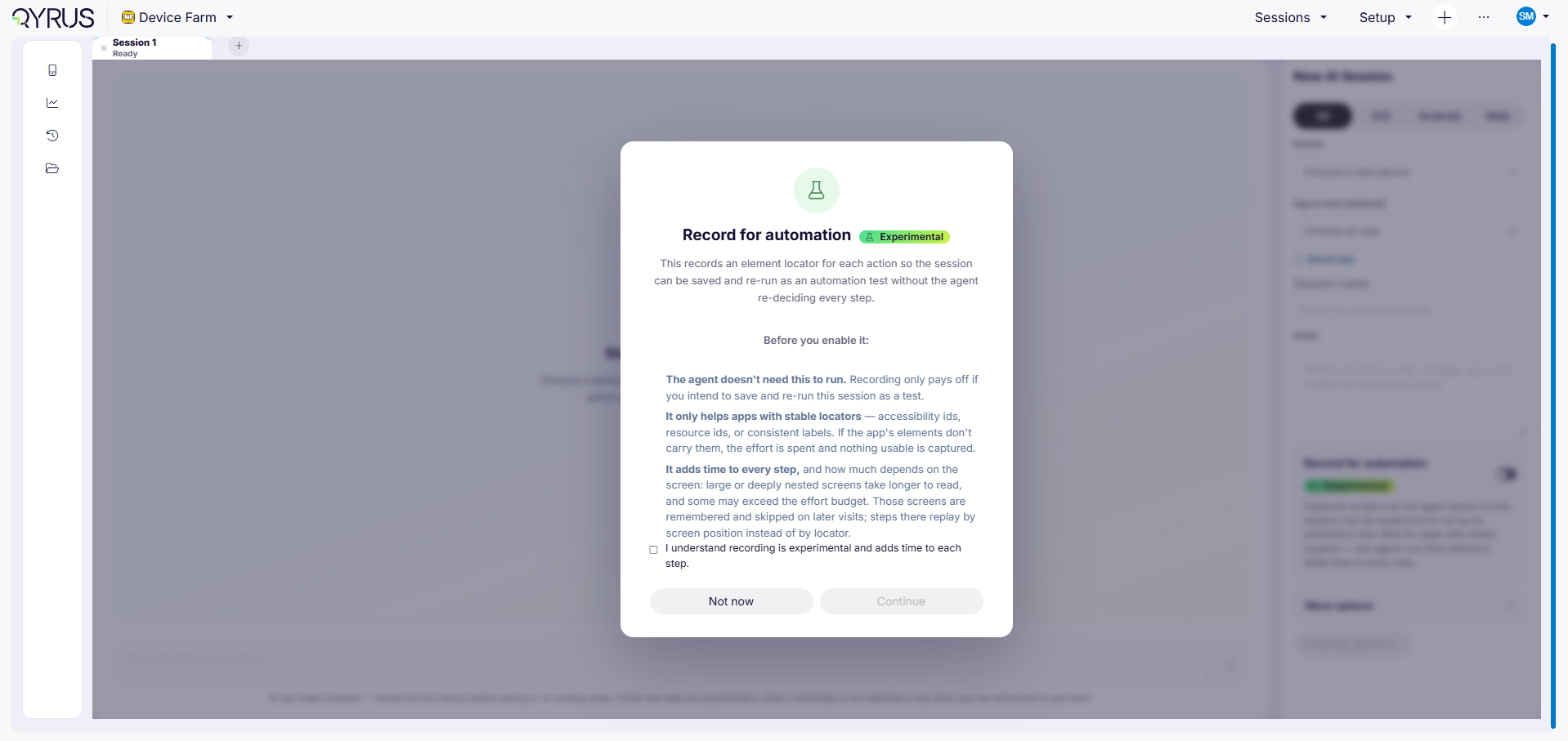
The first time recording is enabled, Qyrus displays an experimental-feature dialog. Review the information, select the acknowledgement checkbox, and select **Continue**. Select **Not now** to leave recording disabled.
When recording is enabled, choose an **Agent effort** level. Higher effort gives the agent more time to capture each element, so each recorded step may take longer.
5. Enter the session goal.
6. Select **Start AI Session**.
7. Send the instructions for the mobile journey.
The agent can run without recording. Recording is useful when you plan to save the session as a reusable test and run it again.
## Review captured elements
While the session runs, supported actions such as taps and text entry can produce recorded element information. When available, the Steps view reports that an element was captured and shows the number of locators found.
Recording works best when the app exposes stable accessibility IDs, resource IDs, or labels. A large or deeply nested screen can take longer to inspect or produce no usable locator. That does not by itself fail the test; the step can fall back to normal guided execution.
## Save the recorded session as a test
1. Complete the mobile session.
2. Select **Save**.
3. Choose the destination project and test name.
4. Continue to the setup panel.
5. Review the project, test, and platform details.
6. Select **Save as Test**.
The saved test keeps the reusable session steps. Device, app, and test-data options are independent choices in the save panel.
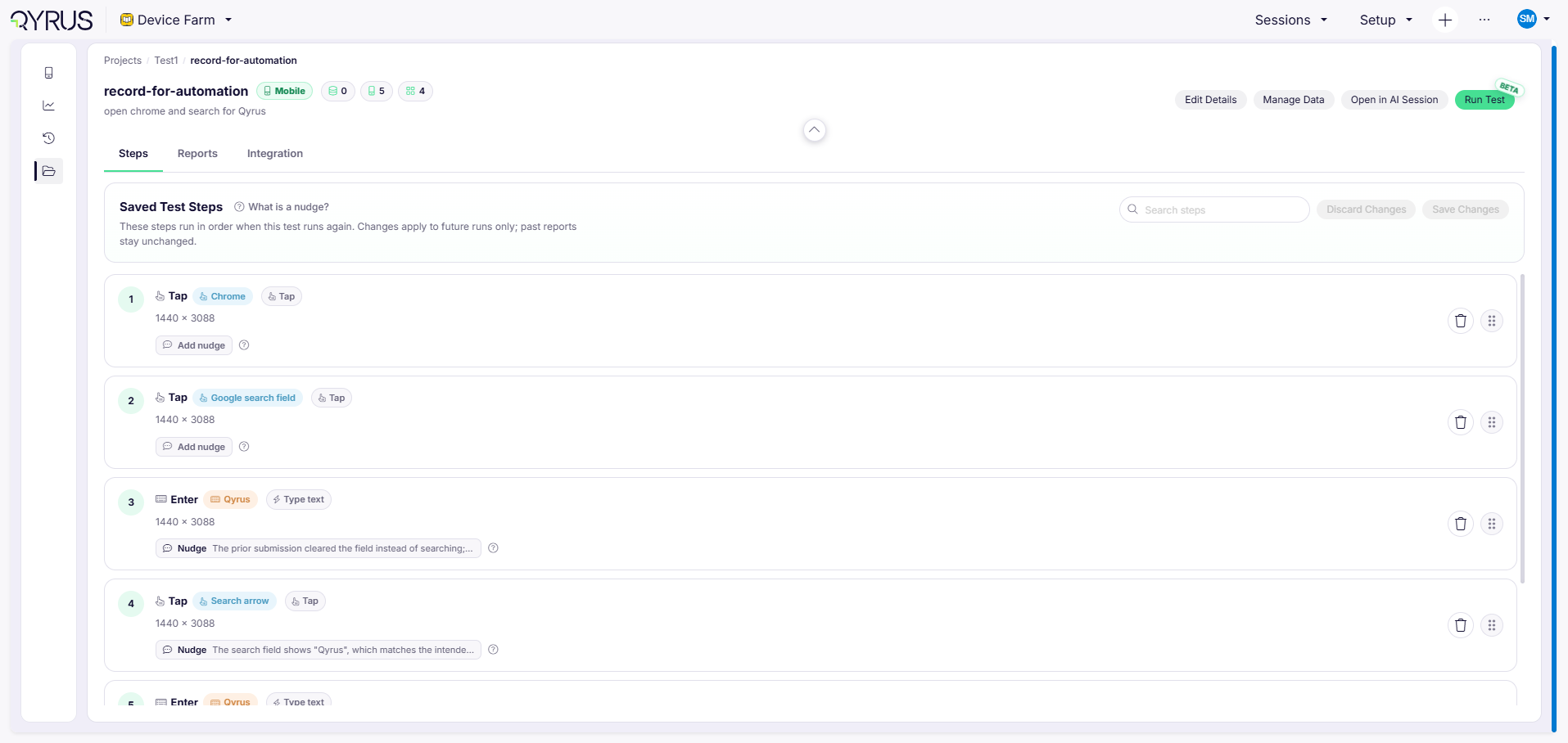
Open the saved test’s **Steps** tab to review the steps that will run again.
## Rerun with recorded elements
1. Open the saved test from its project.
2. Select the green **Run Test** button marked **Beta**.
3. Select the device and app as required.
4. Leave **Use recorded locators** enabled.
5. Optionally enable **Record for automation** again if you want to refresh captured locators.
6. Select **Run Test**.
During the rerun, Qyrus first tries the recorded locator for a step. If the locator cannot be found, the agent falls back to guided execution. A nudge on a step also routes that step through agent-guided handling because the nudge may describe a different valid target.
After the rerun, open the test’s **Reports** tab and select the **Re-run:** report. The report can include an **Automation health** section with pass rate, first-try locator success, and steps that needed a different locator.
## Add a nudge to a saved step
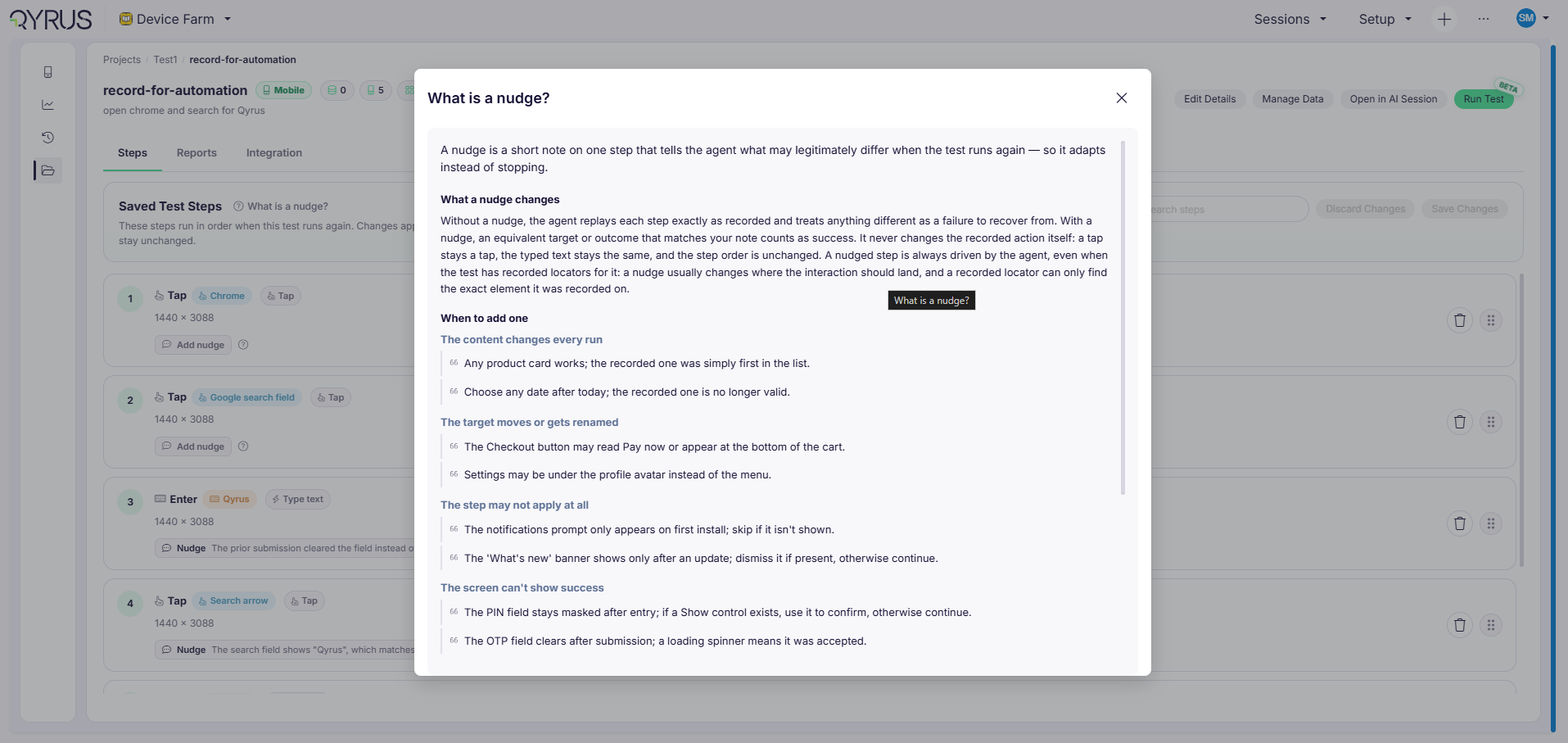
A nudge is short, optional guidance describing what may legitimately vary when one saved step runs again. It does not add an action, change the step order, or change the original action. Nudges are available on saved tests independently of Record for Automation; the original session does not need to have been run with recording enabled.
1. Open any saved test in its project. Record for Automation is not required.
2. Open the **Steps** tab.
3. Find the step that may vary.
4. Select **Add nudge**.
5. Enter guidance in the **Nudge for re-runs** field.
6. Select **Save Changes**.
Keep the note concise. Examples include:
* “Any visible market works; the recorded one may not be available.”
* “The button may be labeled Pay now and may appear at the bottom of the cart.”
* “The notification prompt only appears on first install; skip it if it is not shown.”
Select **What is a nudge?** for the built-in explanation and examples.
Use a nudge when the target or expected visible result can vary. Edit the step instead when the required action itself has changed.