> For the complete documentation index, see [llms.txt](https://docs.qyrus.com/device-farm/llms.txt). Markdown versions of documentation pages are available by appending `.md` to page URLs; this page is available as [Markdown](https://docs.qyrus.com/device-farm/ai-session/rerun-a-session.md).
# Re-run a Session and View Its Reports
You can rerun a saved project test on a fresh device. Run the saved test once normally before using rerun reports. After the initial run, every rerun creates its own report entry.
## Start a Rerun
Open the saved test in its project and select the green **Run Test** button marked **Beta** near the top-right of the test page. Complete the rerun setup and start the test as required.

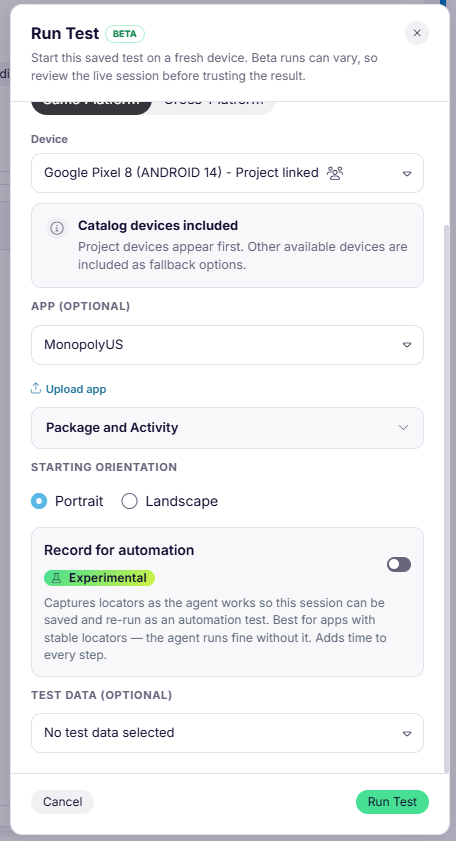
The rerun setup panel lets you confirm the project-linked device, optionally select an app, expand **Package and Activity** when needed, choose the starting orientation, and run the test.
The rerun panel now includes **Use recorded locators** when the saved test has recorded elements. **Record for automation** remains available as an optional setting when you want the rerun to capture or refresh element locators.
## Open the Rerun Report
The Reports tab does not open automatically after the rerun. To view a rerun report:
1. Return to the saved test in the project.
2. Open the **Reports** tab.
3. Select the report whose name begins with **Re-run:**.
4. Review the report summary and available report tabs.
The report may show **Completed** even when individual steps failed. Review the step-level results and summary before considering the rerun successful.
Before a rerun, you can also open the saved test’s **Steps** tab and add a **Nudge** to any step whose target or expected result may vary. This is available for every saved test and does not depend on Record for Automation.
Available report tabs may include:
* **Summary**
* **Playback**
* **Artifacts**
* **Video**
* **Appium Logs**
* **Device Logs**
* **Network**
The **Summary** tab can include the completion status and timestamp, device and app information, overall replay result, token counts, and step-level statuses.
The **Playback** tab provides a visual replay map with **Transitions**, **Interactions**, **Show All**, **Reset**, zoom, and fit-view controls.
The **Artifacts** tab can contain pre-action and post-action screenshots, preview overlays, type-action screenshots, and a PDF report.
The **Video** tab provides the session video. The video may initially show **Preparing...** while it loads.
The **Appium Logs** tab provides Appium server output files and log previews. The **Device Logs** tab provides Logcat files. The **Network** tab provides TCP dump log files. These files or previews may initially show **Preparing...** or **Loading preview\...** while they are being prepared.
> A rerun report is shown in the saved test’s **Reports** tab. Use the report screenshots in [Session reports](/device-farm/ai-session/view-session-reports.md) as the reference for its available detail tabs.