> For the complete documentation index, see [llms.txt](https://docs.qyrus.com/device-farm/llms.txt). Markdown versions of documentation pages are available by appending `.md` to page URLs; this page is available as [Markdown](https://docs.qyrus.com/device-farm/ai-session/upload-an-app.md).
# Upload an App to a Session
Upload an application to a project before starting a session when the app is not already available in Device Farm. Android applications use `.apk` files; iOS applications use `.ipa` files.
## Open the Project's Apps Tab
1. Open **Projects** in Device Farm.
2. Select the project where the application should be stored.
3. Open the **Apps** tab.
4. Select **Add App**.

## Upload the Application
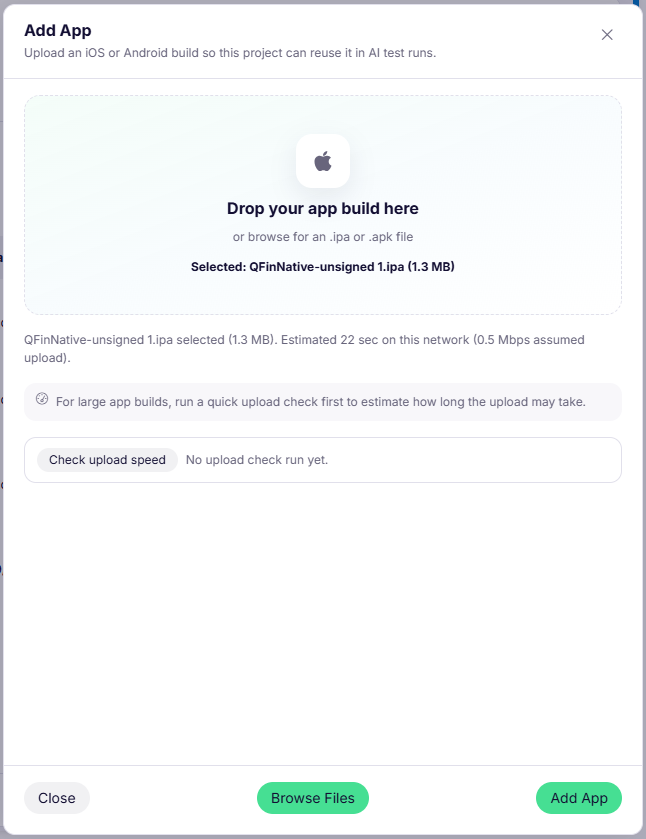
1. In the **Add App** dialog, select the target platform: **Android** or **iOS**.
2. Select **Browse Files**, or drag the application file into the upload area.
3. Choose the `.apk` file for Android or the `.ipa` file for iOS.
4. Optionally select **Check upload speed** if the upload area provides that option.
5. Select **Add App** to upload the application to the project.
The application appears in the project’s Apps list. The list shows the app name, version, upload status, last-used information, and related test data. Wait for the upload status to finish successfully before using the app in a session.
## Select the Uploaded App in a Session
1. Open **AI Session** and select the required platform and real device.
2. Open **App to test (optional)**.
3. Select the application uploaded to the project.
4. Complete the session goal and start the session.
The uploaded application is now associated with the session and is available for the agent to use during the test.