# Introduction
Welcome to Device Farm, your all-in-one platform for manual and automated testing on real devices. Device Farm provides developers with a powerful testing environment to ensure the quality and performance of their applications across a wide range of devices and configurations.
### **Key Features**
* **Access to Real Devices & Cloud Farm:** Device Farm offers a diverse catalog of real Android and iOS smartphones, tablets, as well as Cloud Devices (AWS Device Farm integration), allowing you to test applications across physical hardware and cloud instances.
* **Manual Testing with Modern Workspace:** Interactively test devices with real-time WebRTC streaming, mouse and touch gestures, hardware controls, and a split-pane layout for concurrent log and vitals analysis.
* **In-Session App Management:** Upload and install new applications (`.apk`, `.ipa`, `.apks`, `.aab`) on-the-fly directly inside an active testing session without disconnecting.
* **Automated Testing with Appium:** Automate your test suites using modern Appium (v1 & v2) across Java, Python, and JavaScript frameworks, complete with live execution preview and live Appium logs streaming.
* **Element Explorer & XPath Tester:** Inspect UI elements, view full XML DOM hierarchies, highlight components on an interactive canvas, and verify XPath expressions live.
* **Comprehensive Test Reports & Vitals:** Generate rich reports containing time-series device vitals (CPU, Memory, Network) with CSV/PNG export, device and Appium logs, full video recordings, and screenshots.
* **Enterprise Collaboration & Security:** Integrated Jira bug reporting (with sub-tasks and Xray test integration), secure Project and User API tokens, and custom network profiles.
> Experience Device Farm right away by visiting [**Device Farm**](https://www.qyrus.com/solutions/device-farm-testing/).
***
## **User Guide**
1. [**Getting Started**](/device-farm/getting-started#getting-started)
* [Top Navigation Bar (Navbar)](/device-farm/getting-started#top-navigation-bar-navbar)
* [Interactive Product Tour Guide](/device-farm/getting-started#interactive-product-tour-guide)
* [Navigating the Dashboard & Dashboard Details](/device-farm/getting-started#navigating-the-dashboard--dashboard-details)
* [Navigating to Projects](/device-farm/getting-started#navigating-to-projects)
* [Navigating to History & Filter Details](/device-farm/getting-started#navigating-to-history-sessions-summary--filter-details)
* [Accessing Real Devices](/device-farm/getting-started#accessing-real-devices)
* [Accessing Real Browsers](/device-farm/getting-started#accessing-real-browsers)
* [Supported Browsers and Devices](/device-farm/supported-browser-and-device#supported-devices-and-browsers-list)
2. [**Project Creation and Setup**](/device-farm/project-creation-and-setup#project-creation--setup)
* [Creating a Project](/device-farm/project-creation-and-setup#creating-a-project)
* [Searching & Managing Projects](/device-farm/project-creation-and-setup#searching--managing-projects)
* [Inside Project (Tests, Devices, Apps, Reports, Integrations, Filters)](/device-farm/project-creation-and-setup#inside-project-project-workspace)
* [Application Management (Upload & Multipart)](/device-farm/project-creation-and-setup#application-management)
* [Authentication Management (Project & User API Tokens)](/device-farm/project-creation-and-setup#authentication-management)
* [Integrations Management (Jira & Xray)](/device-farm/project-creation-and-setup#integrations-management)
* [Network Profiles Management (Presets & Custom)](/device-farm/project-creation-and-setup#network-profiles-management)
* [Remote Devices Management](/device-farm/project-creation-and-setup#remote-devices-management)
* [Swagger Documentation](/device-farm/project-creation-and-setup#swagger-documentation)
3. [**Running Manual Tests**](/device-farm/manual#manual-testing)
* [Creating a Manual Device Session](/device-farm/manual#creating-a-manual-session)
* [New Split-Pane Workspace vs Classic View](/device-farm/manual#workspace-layout)
* [Navigation & Control Bar Tools](/device-farm/manual#navigation-bar)
* [In-Session App Installation](/device-farm/manual#in-session-app-installation)
* [Send Keys and Keyboard Capture](/device-farm/manual#send-keys-and-keyboard-capture)
* [Device Logs & Live Streaming](/device-farm/manual#device-logs)
* [Network Shaping & Wi-Fi Simulation](/device-farm/manual#network-shaping)
* [Creating a Manual Browser Session](/device-farm/manual#creating-a-manual-browser-session)
4. [**Running Automated Tests**](/device-farm/automation#running-automation-session)
* [Setting Up Automated Tests](/device-farm/automation#setting-up-automated-tests)
* [Configuring Test Parameters & JSON Capabilities](/device-farm/automation#configuring-test-parameters)
* [Code Examples (Java, Python, JavaScript)](/device-farm/automation#code-examples)
* [Cloud Device Farm (AWS) Automation](/device-farm/automation#cloud-device-farm-automation)
* [Running and Managing Automated Tests](/device-farm/automation#running-and-managing-automated-tests)
5. [**Test Reports and Analysis**](/device-farm/test-reports-and-analysis#test-reports)
* [Steps to View Reports](/device-farm/test-reports-and-analysis#steps-to-view-reports)
* [Viewing Device Vitals (CPU, Memory, Network Graphs & CSV Export)](/device-farm/test-reports-and-analysis#viewing-device-vitals)
* [Accessing Logs, Screenshots & Video](/device-farm/test-reports-and-analysis#accessing-logs-screenshots--video)
* [Sharing Reports via Email](/device-farm/test-reports-and-analysis#steps-to-view-reports)
6. [**Collaboration and Sharing**](/device-farm/integrations)
* [Integrations with Collaboration Tools (Jira & Xray)](/device-farm/integrations#integrations-with-collaboration-tools)
7. [**Troubleshooting and FAQs**](/device-farm/faq#frequently-asked-questions-faq)
* [Frequently Asked Questions](/device-farm/faq#frequently-asked-questions-faq)
8. **Advanced Features**
* [App Upload / Application Management](/device-farm/project-creation-and-setup#application-management)
* [In-Session App Installer](/device-farm/manual#in-session-app-installation)
* [File Upload to Remote Storage](/device-farm/file-upload#1-introduction)
* [Biometrics Bypass](/device-farm/biometrics#1-introduction) (**BETA**)
* [Element Explorer & XPath Tester](/device-farm/element-explorer#element-explorer-feature-for-appium-automation-testing)
* [Network Shaping](/device-farm/manual#network-shaping)
* [Interrupt Testing (Call & SMS)](/device-farm/interrupt#interrupts)
9. **API Documentation**
* [Accessing Device Farm via APIs](/device-farm/project-creation-and-setup#swagger-documentation)
* [API Authentication & Token Management](/device-farm/project-creation-and-setup#authentication-management)
10. **AI Session**
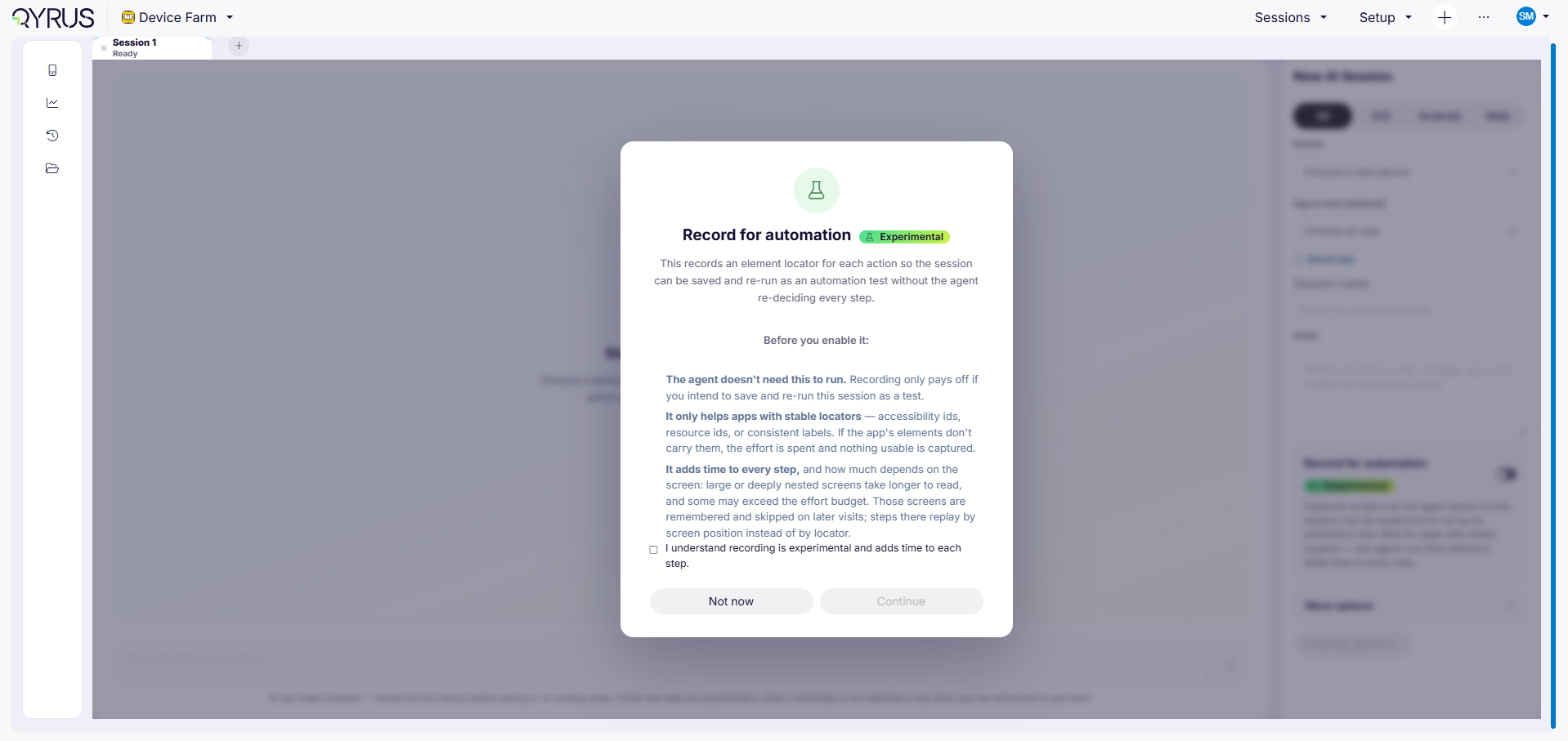
* [Record for Automation](/device-farm/ai-session/record-for-automation)
* [Run a Session Without an App](/device-farm/ai-session/run-a-session)
* [Upload an App to a Session](/device-farm/ai-session/upload-an-app)
* [Run a Web Session](/device-farm/ai-session/run-a-session-with-web)
* [Understand Agent Execution](/device-farm/ai-session/understand-agent-execution)
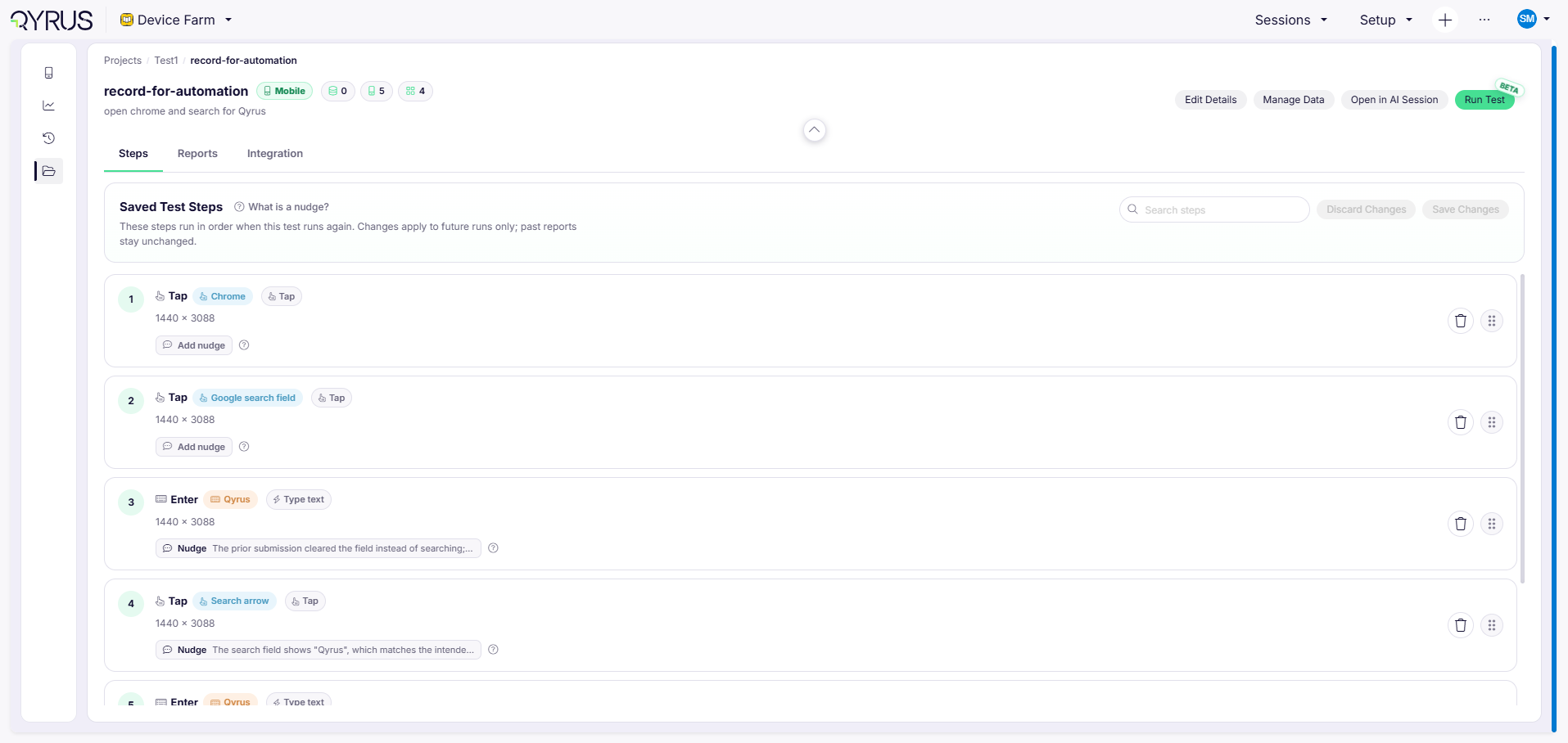
* [Save a Session as a Project Test](/device-farm/ai-session/save-a-session-as-a-project-test)
* [View Session Reports](/device-farm/ai-session/view-session-reports)
* [Re-run a Session and View Its Reports](/device-farm/ai-session/rerun-a-session)
* [Configure Jira and TestRail](/device-farm/ai-session/configure-jira-and-testrail)
* [Manage Projects and Tests](/device-farm/ai-session/manage-projects-and-tests)
* [Analyze Session Activity](/device-farm/ai-session/analyze-session-activity)
* [Qyrion CLI](/device-farm/ai-session/qyrion-cli)
11. **AI Session**
* [Run a Session Without an App](/device-farm/ai-session/run-a-session)
* [Upload an App to a Session](/device-farm/ai-session/upload-an-app)
* [Run a Web Session](/device-farm/ai-session/run-a-session-with-web)
* [Understand Agent Execution](/device-farm/ai-session/understand-agent-execution)
* [Save a Session as a Project Test](/device-farm/ai-session/save-a-session-as-a-project-test)
* [View Session Reports](/device-farm/ai-session/view-session-reports)
* [Re-run a Session and View Its Reports](/device-farm/ai-session/rerun-a-session)
* [Configure Jira and TestRail](/device-farm/ai-session/configure-jira-and-testrail)
* [Manage Projects and Tests](/device-farm/ai-session/manage-projects-and-tests)
* [Analyze Session Activity](/device-farm/ai-session/analyze-session-activity)
* [Record for Automation](/device-farm/ai-session/record-for-automation)
* [Qyrion CLI](/device-farm/ai-session/qyrion-cli)
* [AI Session FAQs](/device-farm/ai-session/aisession-faqs)
### Intended Audience
Device Farm caters to a wide range of users, including:
* **Developers:** Test your applications on various devices and configurations to ensure they work flawlessly across the spectrum.
* **Quality Assurance Teams:** Conduct thorough testing to catch bugs, identify performance bottlenecks, and ensure a high-quality user experience.
* **Testers:** Simulate user interactions on real devices, ensuring your app's functionality and user interface are up to the mark.
Whether you're a solo developer, a part of a development team, or a dedicated tester, Device Farm is designed to streamline your testing processes and help you deliver robust applications to your users.
# Project Creation & Setup
* [Project Setup & Configuration](#project-setup--configuration)
* [Application Management](#application-management)
* [Authentication Management](#authentication-management)
* [Integrations Management](#integrations-management)
* [Network Profiles Management](#network-profiles-management)
* [Remote Devices Management](#remote-devices-management)
* [Swagger Documentation](#swagger-documentation)
## **Project Setup & Configuration**
Click the **‘Project Setup’** button on any project card to configure foundational settings across Applications, Tokens, Integrations, Network Profiles, Remote Devices, and Swagger API Documentation.
***
### **Application Management**
The Application Management screen allows you to upload, organize, and manage mobile application binaries for testing on the Device Farm platform.
#### Supported Application Types:
* **APK**: Android Package files (`.apk`)
* **IPA**: iOS Application Archive files (`.ipa`)
* **APKS**: Android Package Set files (`.apks`)
* **AAB**: Android App Bundle files (`.aab`)
#### 1. Uploading Application Files:
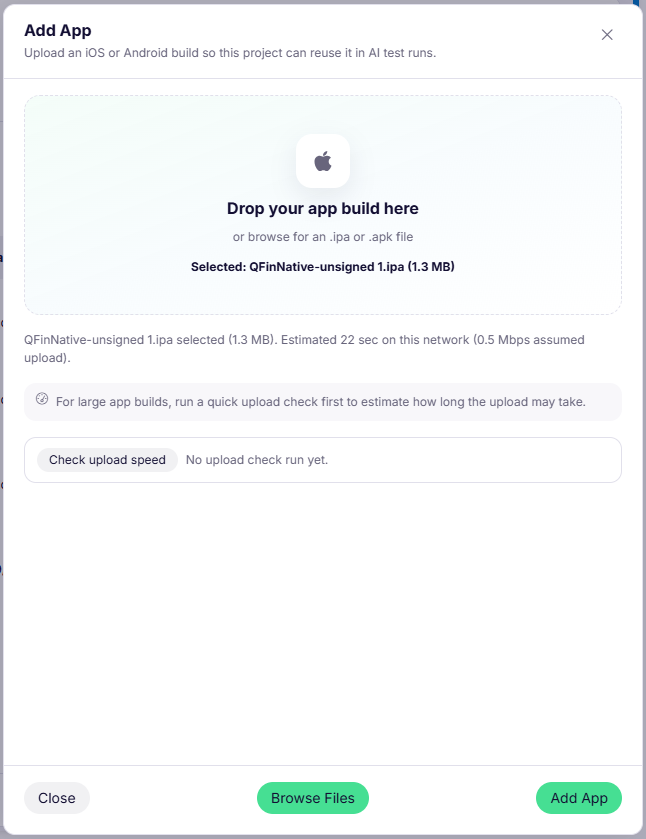
* Navigate to the **Application Files** tab inside Project Setup.
* Click on the **‘Upload File’** button.
* Choose your binary file or use the drag-and-drop area.
* *Multipart Upload:* The platform automatically utilizes optimized multipart upload strategies for large build files to ensure fast and resilient uploads.
* A progress bar tracks the upload progress in real time.
 
#### 2. Managing Uploaded Applications:
* Uploaded binaries appear in the applications table with details such as File Name, Artifact Type, Size, Upload Date, and Status.
* **Upload Status:** When a file is first uploaded, its status shows as `Processing`. Once internal validation and activity extraction are complete, the status turns to `Completed`.
* **Deleting Application Files:** You can delete an uploaded file by clicking the Delete icon. A confirmation modal will ask for confirmation before permanent deletion.
> [Click here to learn more about using uploaded applications in Manual Testing](/device-farm/manual#choose-the-application-to-test-from-the-dropdown-list)
***
### **Authentication Management**
Authentication is critical for securing your Qyrus Device Farm account and protecting your testing data.
#### 1. Token Types:
* **Project Token:** A unique key representing the specific Project. This token is required when executing automation test scripts (such as Appium capabilities) and making project-scoped REST API calls.
* **User Token (API Key):** A unique key tied to your user account. It is passed as the `Custom` header in API requests and Appium authentication capabilities.

#### 2. Enhanced API Security & User Token Management:
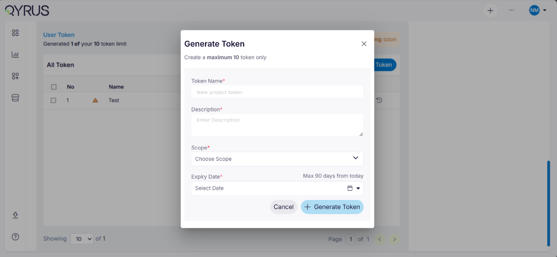
* **Consolidated User Tokens:** User API tokens are centrally managed. You can view, activate, deactivate, or refresh them from your **Profile** page or the Authentication tab.
* **Active / Inactive Status Switch:** You can toggle your user token status between *Active* and *Inactive* at any time using the status switch.
* **Deprecation of Basic Auth:** Basic Auth (username/password) has been phased out in favor of secure token-based authentication.
#### 3. Token Generation & Regeneration Safety Modal:
* **Generate Token:** Click **‘Generate Token’** to create your initial token.
* **Copy Token:** Use the **‘Copy Token’** button to quickly copy the token to your clipboard.
* **Regenerate Token Safety Confirmation:** To regenerate a token, click the refresh button. A security confirmation modal will appear explaining that your existing key will be permanently invalidated. You must type `"Generate"` into the confirmation field before the key is regenerated.
***
### **Integrations Management**
Integrations empower you to streamline bug reporting and collaborate efficiently. By connecting Qyrus Device Farm with your issue tracking systems, you can create defect tickets directly from active sessions and test reports.
#### Steps to Configure Jira Integration:
1. Navigate to **Project Setup** > **Integrations** tab, or access the centralized Jira configuration directly from the global integrations dashboard.
2. Click on **Add Configuration**.
3. Fill in the integration details:
* **Configuration Name:** Enter a descriptive identifier for this connection.
* **Domain URL:** Enter the valid base URL of your Jira instance (e.g., `https://yourdomain.atlassian.net`).
* **User Email & API Token:** Provide your Jira user email and API token ([Click here to learn how to generate an Atlassian API Token](https://support.atlassian.com/atlassian-account/docs/manage-api-tokens-for-your-atlassian-account/)).
4. **Test Connection:** Click **‘Test Connection’** to verify credentials and connectivity with Jira.
5. **Team & Project Mapping:** Select the Team, Service Store, and Projects that will utilize this Jira configuration.
6. Click **Create / Update Configuration** to save.
 
***
### **Network Profiles Management**
Network profiles in Qyrus Device Farm allow you to simulate different real-world network conditions. You can control bandwidth, latency (delay), and packet loss to ensure your mobile apps perform reliably under varying network conditions.
 
#### 1. Predefined Presets vs Custom Profiles:
* **Preset Profiles:** Built-in standard profiles representing typical network environments (2G, 3G, 4G, Good, Poor, High Latency).
* **Custom Profiles:** Create custom network profiles tailored to your specific test scenarios.
#### 2. Creating a Custom Network Profile:
1. In the **Network Profiles** tab, click **‘New Profile’**.
2. Enter the profile parameters:
* **Profile Name (Required):** A descriptive name for the profile.
* **Bandwidth (Required):** Set the connection speed (in `mbps`, range: 1 to 100).
* **Delay (Required):** Define the simulated latency (in `ms`, range: 0 to 1000).
* **Packet Loss (Required):** Specify the packet loss percentage (`%`, range: 0 to 100).
3. Click **‘Add Profile’** to save.
#### 3. Editing and Deleting Profiles:
* Click the edit or delete icon next to any custom profile in the network profiles table to adjust its values or remove it.
***
### **Remote Devices Management**
Remote devices allow you to generate JSON capability configurations for Appium automation sessions and connect devices directly to your automated testing scripts.

#### Steps to Generate JSON Data for Automation:
1. **Filter and Select Device:** Filter by **Region** and **Platform** (`All`, `iOS`, `Android`, or `Cloud`). Select the target device.
2. **Select Application File:** Choose the uploaded binary from the dropdown. For Android, the system automatically detects the **App Package** and launch **App Activity**. Click **‘Copy URL’** to copy the binary endpoint.
3. **Generate JSON Capabilities:** Click **‘Generate JSON’** (or *‘Generate Payload JSON’* for cloud devices). Copy the formatted JSON capabilities into your test framework.

#### Cloud Device Farm (AWS) Automation Workflow:
* **Start Session Endpoint:** `POST /device-farm/automation/provider/start?projectId={projectId}`
* **Stop Session Endpoint:** `POST /device-farm/automation/provider/stop?projectId={projectId}`
***
### **Swagger Documentation**
Device Farm provides an interactive Swagger UI built right into the platform. This documentation exposes all available REST APIs for developers to automate session management, network speed adjustments, device queries, and artifacts management.
 
#### Key Authentication Headers and Parameters:
* **`projectId` / `projectUUID`:** Your unique Project Token.
* **`Custom`:** Your User API Token.
* **`sessionId` / `sessionUUID`:** The unique session identifier (in Appium: `driver.getSessionId()`).
* **`profileName`:** Name of the network profile to apply.
#### Interactive API Testing:
* Click on any endpoint in the Swagger Docs tab.
* Click **‘Try it out’**, enter parameters, and click **‘Execute’** to test API behavior and view live response payloads.

***
# Getting Started
Welcome to Qyrus Device Farm! This section guides you through navigating the platform, utilizing the top navigation bar, taking the interactive product tour, managing projects, filtering execution history, and launching manual, automated, and AI-powered testing sessions on real mobile hardware and desktop browsers.
***
## Top Navigation Bar (Navbar)
The top navigation bar provides global controls, profile management, and quick access to platform tools across all views in Qyrus Device Farm:
* **Service Switcher:** Quickly switch between Qyrus testing services (*Device Farm*, *Web Testing*, *API Testing*, *Mobile Testing*, *Test Management*).
* **Team & Workspace Selector:** Switch between your assigned team workspaces and organizations.
* **Breadcrumbs:** Track your current location within the platform hierarchy (e.g., `Device Farm > Projects > Project Name > Sessions`) and click any ancestor to navigate back instantly.
* **Product Tour Guide Icon:** Click the glowing **Tour Guide** icon on the top right to start or restart the interactive product tour.
* **Notifications & Status Bell:** View real-time platform alerts, build upload completion notices, and test execution status alerts.
* **User Profile & Settings:** Access your profile, manage User API Tokens, toggle token states, configure integrations, view team permissions, and log out.
***
## Interactive Product Tour Guide
For first-time users or team members exploring new features, Qyrus Device Farm includes a built-in **Interactive Tour Guide**:
* **Starting the Tour:** Click the **Product Tour** icon in the top navigation bar (or choose *Product Tour* from the help menu).
* **Guided Walkthrough:** An interactive step-by-step tooltip overlay highlights key areas of the user interface:
1. Creating and managing testing projects.
2. Uploading application binaries (`.apk`, `.ipa`, `.apks`, `.aab`).
3. Configuring Project Tokens and User API Keys.
4. Launching Manual, Automation, and AI testing sessions.
5. Applying network shaping profiles and device filters.
6. Reviewing comprehensive execution reports, vitals graphs, and logs.
* **Dismiss & Resume:** You can exit the tour at any point and relaunch it anytime from the top navigation bar.
***
## Navigating the Dashboard & Dashboard Details
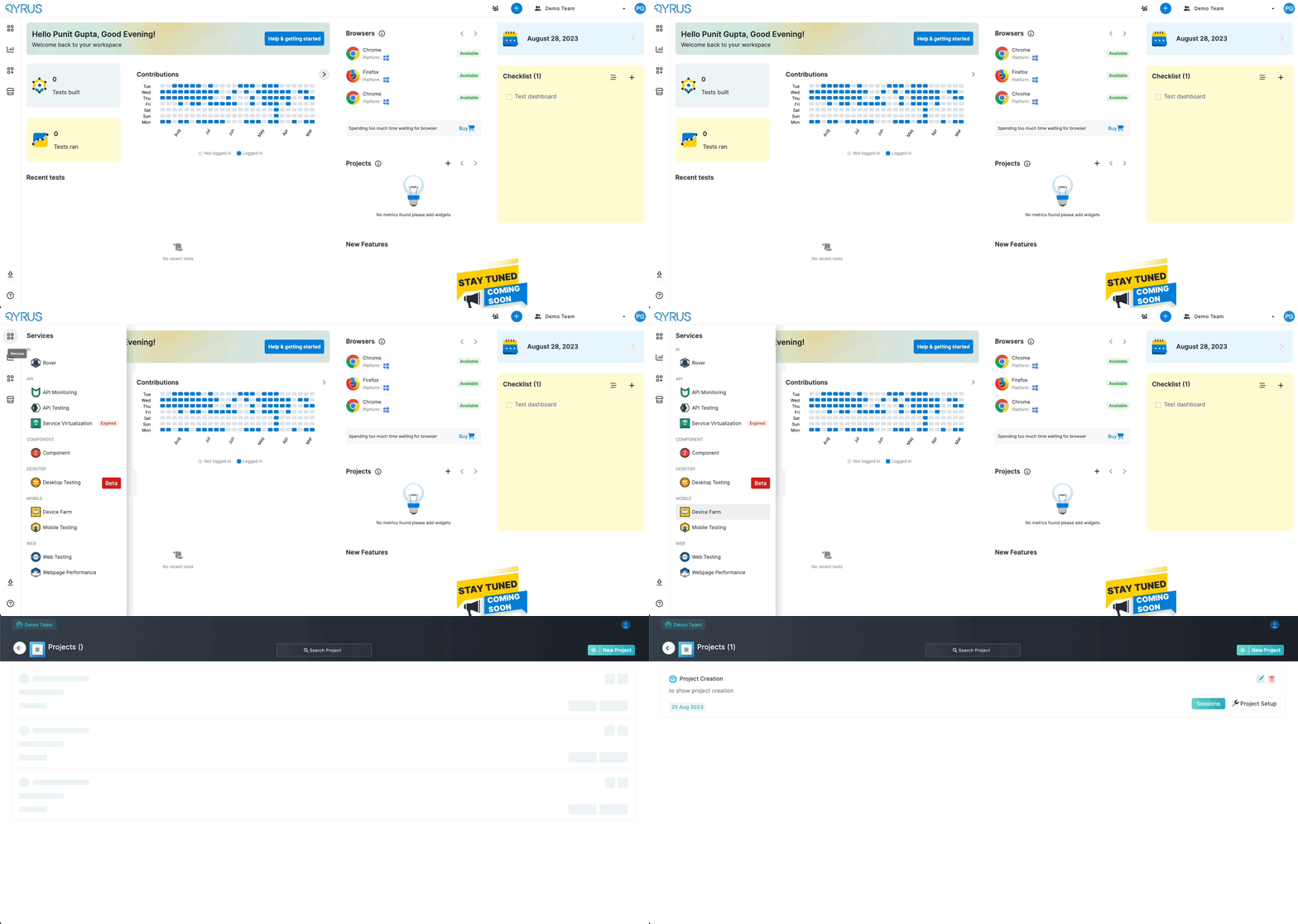
Select the **`Device farm`** service from the top service switcher or left sidebar to open the Device Farm Dashboard.
>  ### Key Dashboard Sections & Metrics:
* **Projects Summary:** Overview of active projects, total test suites, and repository assets.
* **Device Fleet Status:** Real-time visibility into available, busy, and maintenance-state physical devices across global regions.
* **Recent Activity & Executions:** Quick summary cards displaying recent manual and automated test outcomes.
***
## Navigating to Projects
The **Projects** page is the starting hub for organizing your testing activities:
1. **Search Projects:** Use the search bar (`Search Project`) to instantly filter projects by name or description.
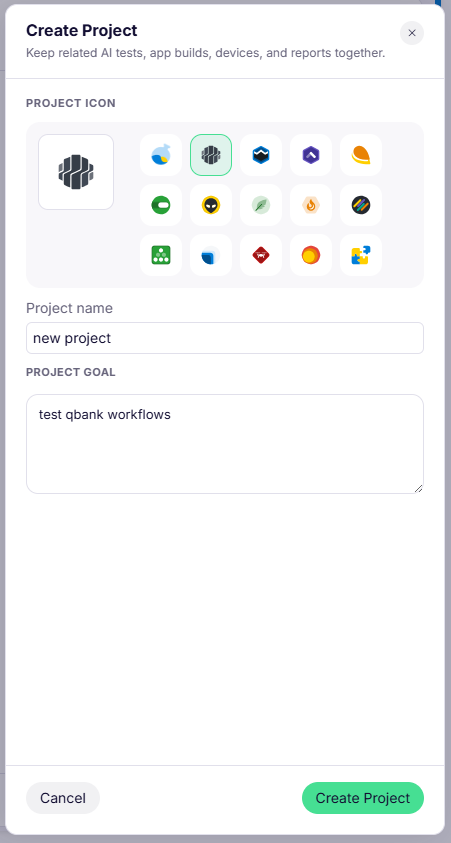
2. **Create New Project:** Click the **`New Project`** button to create a new testing workspace.
3. **Project Cards:** Each card displays:
* Project Name & Description
* Quick action buttons: **`Sessions`** (open session history and launch tests) and **`Project Setup`** (manage apps, tokens, network profiles, and integrations).
* Project Edit (pencil) and Delete (trash) actions.
***
## Navigating to History (Sessions Summary) & Filter Details
Click on the **`Sessions`** button on any project card to open the **Sessions History & Execution Summary** dashboard.

### 1. Execution Tabs:
* **Manual Tab:** Displays history and logs for all interactive manual testing sessions and Object Spy sessions.
* **Automation Tab:** Displays all Appium automated test executions, live execution preview cards, and Appium logs.
### 2. Search & Pagination:
* **Quick Search:** Type in the `Search Session...` input box to instantly filter table rows by session name, device, or user.
* **Items Per Page:** Adjust pagination size using the dropdown (`10`, `20`, `50`, or `100` items per page).
### 3. Comprehensive Filter Details:
Click the **`Apply Filters`** button to open the advanced multi-criteria filter menu:
* **Filter By Date Range:**
* Click the interactive Date Range Picker calendar to select custom `Start Date` and `End Date`.
* Filter across preset windows (`All`, `Last 24 Hours`, `Last 7 Days`, `Last 30 Days`).
* **Filter By Region:** Select specific cloud or private data center regions (`US`, `UK/EU`, `IND/AP`, or `All`).
* **Filter By Platform:** Filter by operating system (`Android`, `iOS`, or `Web`).
* **Filter By Session Name:** Search by exact or partial session name.
* **Filter By Device:** Filter executions by device model name (e.g., `Samsung Galaxy S24`, `iPhone 15 Pro`).
* **Filter By User Name:** Filter test executions triggered by specific team members or service accounts.
* **Filter By Application:** Filter by specific application binary package name or build file.
* **Reset & Apply:** Click **Reset** to clear all active filter parameters, or click **Apply** to refresh the grid immediately.
***
## Accessing Real Devices
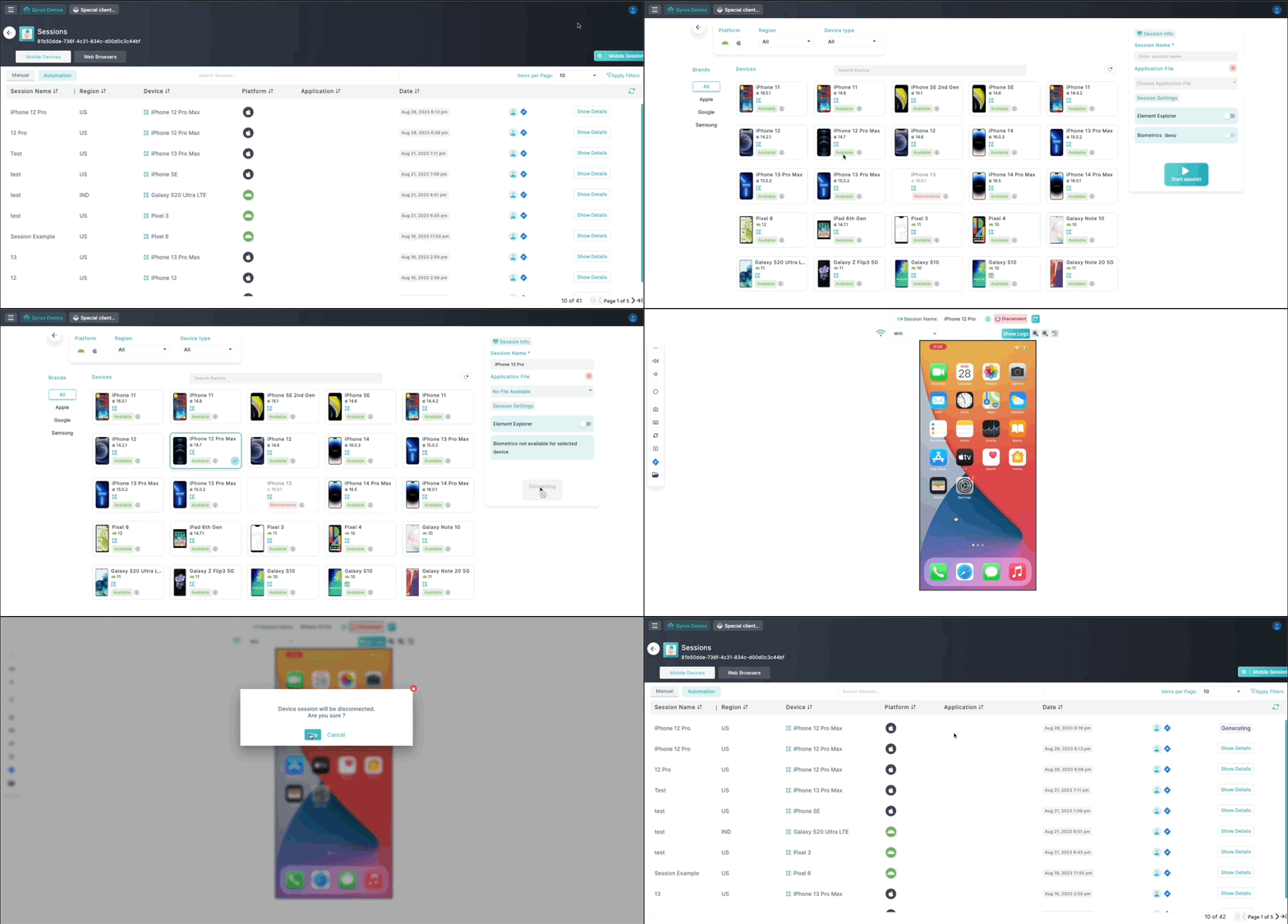
1. **Select a Project:** Choose the project you want to test by clicking on the **`Sessions`** button on the target project card.
> **IMPORTANT:** Ensure that the **`Mobile Devices`** tab is highlighted for the **`Mobile Session`** button to be visible.
2. **Choose a Device:** Click on the **`Mobile Session`** button inside the selected project.
* Filter by **Platform** (Android / iOS), **Region** (Data Center), **Device Type** (Real / Cloud), or **Brand**.
* Review device availability status (`Available`, `Busy`, `Maintenance`) and hardware specs (CPU, RAM, Resolution).
3. **Configure Session Settings:**
* Enter a **Session Name**.
* (Optional) Select an uploaded application binary to install automatically on session launch.
* (Optional) Enable **Element Explorer**, **Biometrics**, or **Reset App** toggles based on your test requirements.
4. **Start Testing:** Click **`Start Session`** to launch the interactive live stream.
5. **End Testing:** Click the **`Disconnect`** (power) button once testing is complete to release the device and generate detailed test reports.
>
### Key Dashboard Sections & Metrics:
* **Projects Summary:** Overview of active projects, total test suites, and repository assets.
* **Device Fleet Status:** Real-time visibility into available, busy, and maintenance-state physical devices across global regions.
* **Recent Activity & Executions:** Quick summary cards displaying recent manual and automated test outcomes.
***
## Navigating to Projects
The **Projects** page is the starting hub for organizing your testing activities:
1. **Search Projects:** Use the search bar (`Search Project`) to instantly filter projects by name or description.
2. **Create New Project:** Click the **`New Project`** button to create a new testing workspace.
3. **Project Cards:** Each card displays:
* Project Name & Description
* Quick action buttons: **`Sessions`** (open session history and launch tests) and **`Project Setup`** (manage apps, tokens, network profiles, and integrations).
* Project Edit (pencil) and Delete (trash) actions.
***
## Navigating to History (Sessions Summary) & Filter Details
Click on the **`Sessions`** button on any project card to open the **Sessions History & Execution Summary** dashboard.

### 1. Execution Tabs:
* **Manual Tab:** Displays history and logs for all interactive manual testing sessions and Object Spy sessions.
* **Automation Tab:** Displays all Appium automated test executions, live execution preview cards, and Appium logs.
### 2. Search & Pagination:
* **Quick Search:** Type in the `Search Session...` input box to instantly filter table rows by session name, device, or user.
* **Items Per Page:** Adjust pagination size using the dropdown (`10`, `20`, `50`, or `100` items per page).
### 3. Comprehensive Filter Details:
Click the **`Apply Filters`** button to open the advanced multi-criteria filter menu:
* **Filter By Date Range:**
* Click the interactive Date Range Picker calendar to select custom `Start Date` and `End Date`.
* Filter across preset windows (`All`, `Last 24 Hours`, `Last 7 Days`, `Last 30 Days`).
* **Filter By Region:** Select specific cloud or private data center regions (`US`, `UK/EU`, `IND/AP`, or `All`).
* **Filter By Platform:** Filter by operating system (`Android`, `iOS`, or `Web`).
* **Filter By Session Name:** Search by exact or partial session name.
* **Filter By Device:** Filter executions by device model name (e.g., `Samsung Galaxy S24`, `iPhone 15 Pro`).
* **Filter By User Name:** Filter test executions triggered by specific team members or service accounts.
* **Filter By Application:** Filter by specific application binary package name or build file.
* **Reset & Apply:** Click **Reset** to clear all active filter parameters, or click **Apply** to refresh the grid immediately.
***
## Accessing Real Devices
1. **Select a Project:** Choose the project you want to test by clicking on the **`Sessions`** button on the target project card.
> **IMPORTANT:** Ensure that the **`Mobile Devices`** tab is highlighted for the **`Mobile Session`** button to be visible.
2. **Choose a Device:** Click on the **`Mobile Session`** button inside the selected project.
* Filter by **Platform** (Android / iOS), **Region** (Data Center), **Device Type** (Real / Cloud), or **Brand**.
* Review device availability status (`Available`, `Busy`, `Maintenance`) and hardware specs (CPU, RAM, Resolution).
3. **Configure Session Settings:**
* Enter a **Session Name**.
* (Optional) Select an uploaded application binary to install automatically on session launch.
* (Optional) Enable **Element Explorer**, **Biometrics**, or **Reset App** toggles based on your test requirements.
4. **Start Testing:** Click **`Start Session`** to launch the interactive live stream.
5. **End Testing:** Click the **`Disconnect`** (power) button once testing is complete to release the device and generate detailed test reports.
>  ***
## Accessing Real Browsers
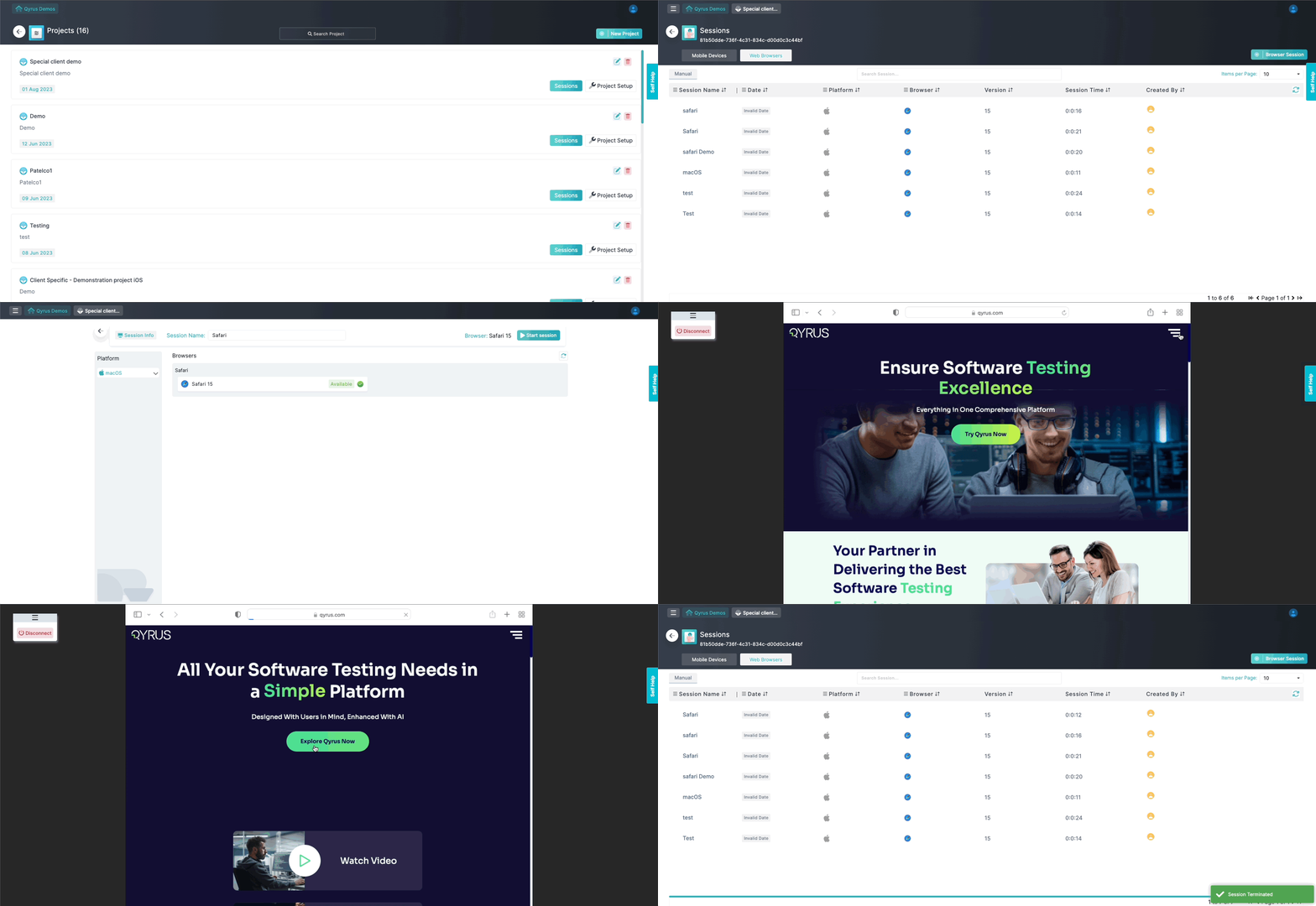
1. **Select a Project:** Choose your project by clicking on the **`Sessions`** button.
2. **Switch to Web Browsers:** Click on the **`Web Browsers`** tab so the browser selection interface is displayed.
> **IMPORTANT:** Make sure that the **`Web Browsers`** tab is highlighted for the **`Browser Sessions`** button to be visible.
3. **Choose a Browser:** Click **`Browser Sessions`** and select your desired browser (Chrome, Firefox, Safari, Edge) and version.
4. **Start Testing:** Enter a **Session Name** and click **`Start Session`** to begin interacting with the browser.
5. **End Testing:** Click **`Disconnect`** on the draggable control bar when your testing is complete.
>
***
## Accessing Real Browsers
1. **Select a Project:** Choose your project by clicking on the **`Sessions`** button.
2. **Switch to Web Browsers:** Click on the **`Web Browsers`** tab so the browser selection interface is displayed.
> **IMPORTANT:** Make sure that the **`Web Browsers`** tab is highlighted for the **`Browser Sessions`** button to be visible.
3. **Choose a Browser:** Click **`Browser Sessions`** and select your desired browser (Chrome, Firefox, Safari, Edge) and version.
4. **Start Testing:** Enter a **Session Name** and click **`Start Session`** to begin interacting with the browser.
5. **End Testing:** Click **`Disconnect`** on the draggable control bar when your testing is complete.
>  ***
## Supported Devices and Browsers
Device Farm provides extensive coverage across modern mobile device models, operating systems, and desktop browsers.
### Mobile Devices:
| Device Platform | Supported Form Factors |
| --------------- | ---------------------------------------- |
| Android | Smartphones, Tablets (Galaxy Tab series) |
| iOS | iPhones, iPads (Pro, Air, Mini) |
### Desktop Browsers:
| Browsers | Supported Versions | Operating System |
| ---------------- | ------------------ | ---------------- |
| Google Chrome | Latest, Latest-1 | Windows, Linux |
| Mozilla Firefox | Latest, Latest-1 | Windows, Linux |
| Apple Safari | Latest, Latest-1 | macOS |
| Microsoft Edge | Latest, Latest-1 | Windows |
| Samsung Internet | Latest, Latest-1 | Android Web |
> For the full catalog of supported devices and DNS whitelisting guidelines, refer to the [Supported Devices and Browsers List](/device-farm/supported-browser-and-device).
***
# Manual Testing
Interactively test and debug mobile applications and web browsers in real time. Gesture, swipe, tap, type, inspect, and perform comprehensive testing on real hardware directly from your desktop browser.
> **Note:** You can enable **Element Explorer** during session setup or launch to inspect UI elements and generate Appium locators concurrently while performing manual tests.
***
### Prerequisites:
* Having a project created [(click here for more information on project creation)](/device-farm/project-creation-and-setup#creating-a-project)
* (Optional) Uploading an application binary file (`.apk`, `.ipa`, `.apks`, `.aab`) [(click here for more information on uploading an application)](/device-farm/project-creation-and-setup#application-management)
***
## Creating a Manual Device Session
1. **Navigate to Sessions:** Under **Projects**, click on the **“Sessions”** button on your target project card.

2. **Click on “Mobile Session”:**

3. **Choose and Filter Devices:**
* Filter by **Platform** (`Android` or `iOS`).
* Filter by **Region** (US, UK/EU, India) to ensure low-latency connectivity.
* Filter by **Device Type** (Real Device or Cloud / AWS Device Farm).
* Filter by **Brand** (Samsung, Apple, Google, OnePlus, Xiaomi, Huawei, etc.) or search by device model name.
* Review device details on each card:
* **CPU, RAM, Resolution, and OS Version**
* **Dedicated vs Shared Device** indicator icons
* **Availability Status:** `Available` (ready to test), `Busy` (in use), or `Maintenance`
* **Device User Info:** For busy devices on Team or Enterprise tiers, hover/click the user icon to see who is currently using the device.

4. **Configure Session Settings:**
* **Session Name (Required):** Enter a descriptive name for your testing session.

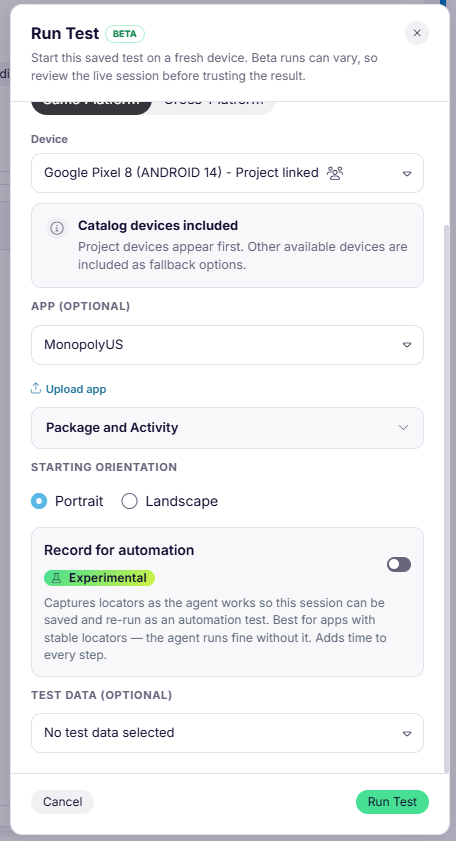
* **Application File (Optional):** Choose an uploaded application binary from the dropdown. The app will be automatically installed when the session starts.
> *Note:* You can also install or switch applications later inside an active session using the **In-Session App Installer**.

* **Element Explorer Toggle:** Enable this toggle to start the session in Object Spy / Element Explorer mode for inspecting UI attributes and testing XPath locators.
* **Biometrics Bypass Toggle (Beta):** Enable this toggle to bypass fingerprint and Face ID prompts for instrumentable debug builds.
* **Reset App Toggle:** Automatically clear application user cache and data before starting.
* **Switch to Old Device Interface:** Toggle if you prefer the classic legacy single-pane view over the modern split-pane workspace.
5. **Click “Start Session”:**
 
***
## Workspace Layout
Device Farm provides a modern **Split-Pane Workspace** designed for maximum productivity:
* **Left Pane (Device Stream & Quick Controls):** Renders the ultra-responsive, low-latency WebRTC video stream of the physical device with touch interaction overlay and collapsible device control bar.
* **Right Pane (Metrics, Logs & Info):** Displays live device information (OS, CPU architecture, RAM, Resolution, Device UUID), real-time streaming **Device Logs**, and **Appium Logs**.
* **Split Resizing:** Drag the divider between panes to customize the view to your screen dimensions.

***
## Navigation & Control Bar
Next to the interactive device screen is a control bar providing hardware, software, and debugging controls.
### Device & Session Info:
The top of the session panel provides complete device specifications and runtime details:

* **Session Name:** Name specified during test initiation.
* **Device Name & Region:** Device model and hosting data center location.
* **Hardware Specs:** OS Version, CPU Architecture, RAM, Resolution, and unique Device ID.
***
### Control Bar Actions:
* **Collapse / Expand Bar:** Click the chevron button to collapse the control bar into icon-only mode or expand it with full labels.
*  **Send Keys / Clipboard:** Click **Send Keys** to open the clipboard text input modal. Type or paste long strings, URLs, or credentials and click *Send as Keys* to type them directly into the focused input field on the device.
*  **Capture Keyboard:** Toggle the physical keyboard capture. When enabled, keystrokes typed on your computer keyboard are sent directly to the remote device without using the on-screen soft keyboard.
*  **Screenshot:** Take an instant screenshot of the device display. Captured images are stored in the test report and can be downloaded immediately.
*  **Rotate Device (Orientation):** Click **Rotate** to toggle device orientation between Portrait and Landscape modes.
*  **File Upload:** Click **File Upload** to transfer files from your computer directly into the remote device storage (`Downloads` folder on Android; `Files > On My iPhone > Chrome` on iOS).
*  **In-Session App Installation:** Click **Install App** to open the in-session installer. Upload a new `.apk`, `.ipa`, `.apks`, or `.aab` file or choose an existing uploaded app to deploy onto the device on-the-fly without disconnecting.
*  **Create Jira Ticket:** Click the **Jira** icon to open the integrated bug reporting modal. Select your Jira project, issue type (Bug, Task, Sub-task with Parent ID, or Xray test category), enter Summary & Description, choose Priority, and submit. The current device screenshot is automatically attached.
* **Phone Call & SMS Interrupts:** For telephony-enabled devices with an active SIM/number:
* **Trigger Call:** Simulates an incoming voice call to verify how your app handles call interruptions.
* **Trigger SMS:** Simulates an incoming text message notification.
* **Biometrics Bypass:** For supported apps, click the fingerprint icon to trigger biometric authentication bypass dynamically during testing.
* **Lock & Unlock Device:** Power off / lock the device screen, or wake / unlock the device (iOS & Android).
* **Volume Controls:** Hardware **Volume Up** and **Volume Down** buttons.
* **Hardware Navigation Buttons:**
* **Back (`KEYCODE_BACK`):** Navigate back to the previous screen.
* **Home (`KEYCODE_HOME`):** Return to the home screen.
* **Overview / App Switcher (`KEYCODE_APP_SWITCH`):** Open the recent applications switcher (Android).
*  **Terminate App:** Force terminate the currently running foreground application (iOS).
*  **Network Shaping & Wi-Fi Selector:** Choose from preset network profiles (2G, 3G, 4G, Good, Poor) or custom profiles to simulate varying bandwidth, latency, and packet loss. You can also click *Add..* to configure and apply a new network profile on the fly.
*  **Video Resolution Selector:** For WebRTC iOS sessions, choose your desired stream quality (e.g., `Auto`, `720p`, `1080p`).
* **Zoom Controls:** Use the **Zoom In (+)**, **Zoom Out (-)**, and **Reset Zoom** buttons to adjust device viewport scaling.
* **Disconnect Session:** Click the red power button to disconnect from the device. A confirmation modal will appear. Once confirmed, the session is cleanly released and the comprehensive test report is generated.
***
### **In-Session App Installation**
The in-session app installer allows testers to test multiple versions of an app or test app upgrades without losing the session connection.
1. Click **Install App** on the control bar.
2. In the dialog, you can:
* **Upload New App:** Drag and drop or browse for a new `.apk`, `.ipa`, `.apks`, or `.aab` binary. The file will upload via fast multipart transfer.
* **Choose Existing App:** Select any completed application from your project repository.
3. Click **Install** to deploy and launch the application on the remote device.

***
### **Device Logs**
Live logs stream system-level messages, application traces, and crash stack traces in real time from the moment the device connects.
Click on **`Show Logs`** to open the logs panel and **`Hide Logs`** to collapse it.


#### Log Viewer Controls:

*  **Clear Logs:** Clears the current log console buffer.
*  **Pause / Lock Logs:** Pauses live log autoscroll so you can inspect a specific stack trace while the session continues.
*  **Refresh Logs:** Refreshes log buffer from the device daemon.
*  **Disconnect Logs:** Pauses log stream to optimize network bandwidth.
***
### **Generate JSON Capabilities**
Click **Generate JSON** on the session interface to view and export the current session configuration, device UDID, and authentication payload formatted for Appium automation scripts.

***
### **Network Shaping**
Network shaping allows you to simulate real-world mobile network conditions by adjusting bandwidth, latency (delay), and packet loss.
Select a preset network profile or choose a custom-created network profile by clicking on the Wi-Fi dropdown menu on the control bar. [Click here to view instructions on creating custom network profiles.](/device-farm/project-creation-and-setup#network-profiles-management)

***
## Creating a Manual Browser Session
Device Farm enables real desktop browser testing across Google Chrome, Mozilla Firefox, Apple Safari, Microsoft Edge, and Samsung Internet.
1. **Under Projects, click on “Sessions” for your project**

2. **Click on “Web Browsers” tab**

3. **Click on “Browser Sessions”**

4. **Choose a browser from the list (Chrome, Firefox, Safari, Edge)**

5. **Enter a “Session Name” and click “Start Session”**
 
6. **Interacting with the Browser:**
* Interact directly with web pages, test responsive breakpoints, and perform functional tests.
* Use the draggable floating control widget to disconnect when done.
7. **End Session:** Click **Disconnect** to terminate the session and view the test execution report.

***
### **Analyzing Test Results**
Once a manual test session is ended, review and analyze the detailed results:
* **Test Report:** Access the comprehensive test report containing full session video recording, device vitals graphs, device logs, screenshots, and metadata.\
[**Click here to learn more about Test Reports and Analysis.**](/device-farm/test-reports-and-analysis)
* **Bug Reporting:** Document bugs directly from the report view or submit them to Jira ([Reporting Bugs](/device-farm/integrations#integrations-with-collaboration-tools)).
***
# Automation
### Running Automation Sessions
Automated testing allows you to leverage Qyrus Device Farm's real Android and iOS devices to execute your automated test scripts at scale. During and after execution, Device Farm provides comprehensive reporting that includes real-time live previews, video recordings, time-series device vitals, Appium logs, and device system logs.
***
#### Prerequisites:
* A Qyrus Device Farm project created [(click here for project creation)](/device-farm/project-creation-and-setup#creating-a-project)
* Application binary uploaded to the project [(click here for application upload)](/device-farm/project-creation-and-setup#application-management)
* **Appium:** Appium client and server (supports Appium 1.x and Appium 2.x)
* **Development Environment:**
* **Java:** JDK 8, 11, or 17+ with an IDE (Eclipse, IntelliJ IDEA, VS Code) and build tool (Maven/Gradle).
* **Python (Optional):** Python 3.8+ with `Appium-Python-Client` and `pytest`/`unittest`.
* **JavaScript/TypeScript (Optional):** Node.js with WebdriverIO or `webdriverio`/`appium`.
***
### Setting Up Automated Tests
#### Creating an Automation Device Session via Quick Setup:
1. **Under Projects, click on “Sessions” for your project:**

2. **Click on the “Automation” tab and select “Quick Setup Guide”:**

***
### Configuring Test Parameters & Capabilities
1. **Choose a Device:** Filter devices by region, platform (Android / iOS / Cloud), brand, or search by model.

2. **Select Application File:**
* **Android:** Select the uploaded `.apk`, `.apks`, or `.aab` file. The tool automatically detects the App Package and allows selecting the initial launch **App Activity**.
* **iOS:** Select the uploaded `.ipa` file.

3. **Click “Generate JSON”:**
* The interactive CodeMirror editor outputs the JSON capabilities formatted for your testing framework.
 
4. **Add Capabilities into Your Framework:**
* Copy the generated capabilities and paste them into your test framework setup method.
 
***
### Cloud Device Farm (AWS) Automation
For devices running on AWS Device Farm cloud infrastructure:
1. Generate the Cloud Device payload from the **Remote Devices** tab in Project Setup.
2. Start the automation session using the REST API endpoint:
* `POST /device-farm/automation/provider/start?projectId=`
3. Execute your Appium test suite targeting the cloud endpoint.
4. Stop the session using the endpoint:
* `POST /device-farm/automation/provider/stop?projectId=`
***
### Code Examples
#### 1. Java (TestNG & Appium)
```java
import java.net.MalformedURLException;
import java.net.URL;
import org.openqa.selenium.By;
import org.openqa.selenium.remote.DesiredCapabilities;
import org.testng.annotations.AfterTest;
import org.testng.annotations.BeforeTest;
import org.testng.annotations.Test;
import io.appium.java_client.android.AndroidDriver;
public class DeviceFarmAutomation {
private AndroidDriver driver;
@BeforeTest
public void setUp() throws MalformedURLException {
DesiredCapabilities desiredCapabilities = new DesiredCapabilities();
desiredCapabilities.setCapability("deviceName", "");
desiredCapabilities.setCapability("platformName", "Android");
desiredCapabilities.setCapability("automationName", "UiAutomator2");
desiredCapabilities.setCapability("platformVersion", "");
desiredCapabilities.setCapability("udid", "");
desiredCapabilities.setCapability("app", "");
desiredCapabilities.setCapability("appium:AuthToken", "");
desiredCapabilities.setCapability("appium:Authentication", "");
desiredCapabilities.setCapability("appium:SessionName", "My Automation Run");
URL remoteUrl = new URL("https:///wd/hub");
driver = new AndroidDriver(remoteUrl, desiredCapabilities);
}
@Test
public void testLogin() throws InterruptedException {
System.out.println("Session ID: " + driver.getSessionId());
Thread.sleep(5000);
driver.findElement(By.id("com.example.app:id/username")).sendKeys("testuser");
driver.findElement(By.id("com.example.app:id/password")).sendKeys("password123");
driver.findElement(By.id("com.example.app:id/loginBtn")).click();
Thread.sleep(5000);
}
@AfterTest
public void tearDown() {
if (driver != null) {
driver.quit();
}
}
}
```

> **Note:** `remoteUrl`, `appium:AuthToken` (Project Token), and `appium:Authentication` (User API Token) authenticate and route your test traffic securely to the target real device.
***
#### 2. Python (Appium-Python-Client & PyTest)
```python
import pytest
from appium import webdriver
from appium.options.android import UiAutomator2Options
@pytest.fixture(scope="function")
def driver():
options = UiAutomator2Options()
options.platform_name = "Android"
options.device_name = ""
options.platform_version = ""
options.udid = ""
options.app = ""
options.set_capability("appium:AuthToken", "")
options.set_capability("appium:Authentication", "")
options.set_capability("appium:SessionName", "Python Automation Run")
driver = webdriver.Remote("https:///wd/hub", options=options)
yield driver
driver.quit()
def test_login_flow(driver):
driver.implicitly_wait(10)
username_field = driver.find_element(by="id", value="com.example.app:id/username")
username_field.send_keys("testuser")
login_button = driver.find_element(by="id", value="com.example.app:id/loginBtn")
login_button.click()
```
***
#### 3. JavaScript / TypeScript (WebdriverIO)
```javascript
import { remote } from 'webdriverio';
const opts = {
hostname: '',
path: '/wd/hub',
protocol: 'https',
capabilities: {
platformName: 'Android',
'appium:deviceName': '',
'appium:platformVersion': '',
'appium:udid': '',
'appium:automationName': 'UiAutomator2',
'appium:app': '',
'appium:AuthToken': '',
'appium:Authentication': '',
'appium:SessionName': 'WebdriverIO Automation Run'
}
};
async function runTest() {
const client = await remote(opts);
const searchInput = await client.$('id:com.example.app:id/search');
await searchInput.setValue('Qyrus Device Farm');
await client.deleteSession();
}
runTest();
```
***
### Running and Managing Automated Tests
1. **Start Automated Tests:** Run your test script from your local machine, IDE, or CI/CD pipeline (Jenkins, GitHub Actions, GitLab CI).
2. **Monitor Live Execution:**
* Switch to the **Automation** tab in the Device Farm dashboard.
* The running test appears with a live stream preview card and real-time execution status (`Running`, `Completed`, `Failed`).
 
3. **Live Appium Logs:** Click on the active session to view live Appium streaming logs to debug commands and element locators as they execute.
4. **Access Detailed Reports:** Once execution finishes, click **Show Details** to view the comprehensive test report containing Appium logs, device system logs, device vitals graphs, screenshots, and video recordings. [Learn more about Test Reports](/device-farm/test-reports-and-analysis#test-reports).
***
# Test-Reports-and-Analysis
Comprehensive test reports are a fundamental aspect of your testing workflow, providing deep, actionable insights into your test executions across manual sessions and automated Appium runs. Qyrus Device Farm generates detailed reports encompassing performance vitals, full session video recordings, screenshots, system logs, and Appium automation traces.
***
### What is Included in Test Reports:
1. **Session & Device Information:** Complete summary including session name, execution date, duration, user account, hardware specifications, and device identifiers.
2. **Interactive Device Vitals:** Performance metrics tracking CPU utilization, memory consumption, and network throughput over the session timeline, with export to CSV and PNG formats.
3. **Full Video Recording:** Complete high-definition video evidence capturing every user gesture, transition, and app response.
4. **Screenshots Gallery:** Timestamped gallery of all manual and automated screenshots captured during the session.
5. **Device System Logs:** Live system-level logs and logcat/syslog dumps capturing app events, background tasks, and error traces.
6. **Appium Logs (for Automation):** Step-by-step Appium automation command logs with HTTP request/response payloads for debugging automation failures.

***
## Steps to View Reports
1. Navigate to **Sessions** for your project.
2. In the sessions summary table (Manual or Automation tab), locate your test execution and click **“Show Detailsâ€**.
 
***
## Session Information & Email Sharing
The top section of the report provides quick metadata regarding the execution:
* **Session Name:** Name specified during test initiation.
* **Date & Region:** Timestamp of the test run and data center region where the device was hosted.
* **Session Duration:** Total active time (e.g., `0h 14m 32s`).
* **User Email:** Email ID of the tester who ran the session.

### Sharing Reports via Email:
1. Click the **Envelope** (Email) icon on the Session Info card.
2. Enter one or more recipient email addresses (comma-separated).
3. Click **“Sendâ€** to dispatch a report summary link.

***
## Device Information
The **Device Info** card outlines the hardware and platform specs of the host device:
* **CPU Architecture:** Processor model and core specs.
* **Screen Resolution:** Pixel width and height (e.g., `1080x2400`).
* **RAM:** Total device physical memory.
* **OS Version:** Android or iOS platform release.
* **Device Type:** *Dedicated* or *Shared* device allocation.
* **Device Name & Device UUID:** Unique hardware and cloud identifiers.

***
## Full Video Recording Playback
Device Farm records the full visual stream of every testing session:
* Click **“Play Videoâ€** in the video card to launch the video playback modal.
* Use playback controls to scrub through the timeline, pause at key moments, and verify visual bugs or rendering issues.

***
## Viewing & Exporting Device Vitals
Click on the **“Device Vitalsâ€** tab to analyze resource consumption across the session lifecycle:
* **CPU Usage Graph:** Time-series line chart displaying CPU percentage utilized by your application and system processes.
* **Memory Usage Graph:** Tracks RAM consumption over time to help pinpoint memory leaks.
* **Network Usage Graph:** Monitors network bandwidth upload and download rates.

### Exporting Vitals Data:
* **Download Vitals.csv:** Export the raw time-series data points as a `.csv` spreadsheet for external performance analysis.
* **Download Vitals.png:** Export high-resolution rendered graphical charts as `.png` images for inclusion in QA presentations and stakeholder reports.
> *Note:* Device vitals collection is supported on real Android and iOS devices.
***
## Accessing Logs & Screenshots
### 1. Device Logs:
Click the **“Device Logs”** tab to inspect system messages, crash logs, and application standard output captured during the session. You can search within the log text or export the full log file.

### 2. Screenshots Gallery:
Click the **“Screenshots”** tab to view all screenshots captured manually via the control bar or captured programmatically during automation runs. Click on any thumbnail to view the full-size image or download it.

### 3. Appium Logs (Automation Sessions):
For automation runs, switch to the **“Appium Logs”** tab to review the server interaction log, including HTTP request routes, payload arguments, locator strategies evaluated, and session termination events.
***
# Element Explorer Feature for Appium Automation Testing
## **Introduction**
The **Element Explorer** (also referred to as **Object Spy**) feature simplifies identifying UI elements on Android and iOS devices, making automation script authoring using the Appium framework efficient, robust, and accurate. Element Explorer enables you to inspect the live application user interface, capture screen DOM dumps, highlight elements on an interactive screenshot canvas, inspect complete XML attributes, test XPath locators live, and copy ready-to-use locators directly into your automation codebase.
### Benefits of using Element Explorer:
* **Accelerated Locator Identification**: Eliminates guesswork and manual trial-and-error by generating verified locators instantly.
* **Accurate & Multi-Locator Support**: Generates Accessibility IDs, Resource IDs, Names, Class Names, Index locators, and XPath queries.
* **Live XPath Evaluator**: Validate custom XPath queries directly against the screen DOM before adding them to your test framework.
* **Hierarchical DOM Tree Exploration**: Traverse parent, child, and sibling elements to locate nested or dynamic UI components.

***
## 1. Accessing Element Explorer
Starting an Element Explorer session is straightforward:
1. Under **Projects**, click **“Sessions”** on your project card.
2. Click **“Mobile Session”** to open the device catalog.
3. Select your desired Android or iOS real device and your application binary.
4. Toggle the **`Element Explorer`** switch to enable Object Spy mode.
5. Click **“Start Session”**.

***
## 2. Capturing Screen Dumps & Inspecting Elements
### 1. Interactive Device View & Screen Dump:
* In the left pane, navigate your app to the specific screen you want to inspect.
* Click the **“Dump Screen”** button (the double-chevron icon) on the center divider.
* The platform captures a high-resolution screenshot and fetches the complete UI component hierarchy.

### 2. Interactive Screenshot Canvas & Highlighter Colors:
* Click on any visual component directly within the right-hand screenshot canvas.
* The inspected element is instantly highlighted with a bounding box.
* **Color Picker:** Use the eyedropper color picker on the top right to customize your highlighter box color (**Cyan**, **Red**, or **Purple**) for optimal visibility across dark and light app themes.
### 3. Object Finder & Locators:
Once an element is clicked, the **Object Finder** panel displays its available locators:
* **Accessibility ID:** Ideal for cross-platform automation.
* **Name / Text:** The element's displayed label or content-description.
* **ID / Resource-ID:** Android `package:id` or iOS identifier.
* **Class Name:** The underlying UI class (e.g., `android.widget.Button`, `XCUIElementTypeButton`).
* **Id Index, Name Index, Class Index:** Ordinal positions within the hierarchy.
* **One-Click Copy:** Click the copy icon next to any locator value to copy it immediately to your clipboard.

***
## 3. Advanced Inspection Tools
### 1. More Attributes Modal:
Click **“More Attributes”** at the top of the Object Finder panel to open a full modal table containing all XML attributes associated with the selected element (e.g., `bounds`, `checkable`, `checked`, `clickable`, `enabled`, `focusable`, `focused`, `scrollable`, `selected`, `displayed`).
### 2. XPath Verification Tool:
Test and refine XPath queries interactively without executing test scripts:
1. In the **“Check your Xpath”** input field, enter your candidate XPath expression (e.g., `//android.widget.Button[@text='Login']`).
2. Click **“Verify”**.
3. The evaluator will instantly check the DOM tree and return a success confirmation (e.g., *"1 element found"*) or an error message if the XPath does not match.
### 3. DOM Tree Hierarchy:
The **“Elements in hierarchy”** tree view allows you to browse the complete XML structure:
* Expand and collapse tree nodes (`mat-tree`) to navigate parent containers, layouts, and leaf elements.
* Selecting a node in the tree automatically highlights the corresponding element on the canvas and loads its attributes in the Object Finder.
***
## 4. Using Locators in Automation Scripts
Copy the generated locators and incorporate them into your automation framework:
### Python Example:
```python
from appium import webdriver
from appium.options.ios import XCUITestOptions
options = XCUITestOptions()
options.platform_name = "iOS"
options.device_name = "iPhone 14 Pro"
options.udid = ""
options.app = ""
options.set_capability("appium:AuthToken", "")
options.set_capability("appium:Authentication", "")
driver = webdriver.Remote('/wd/hub', options=options)
# Using copied Accessibility ID
login_button = driver.find_element(by="accessibility id", value="login_button_id")
login_button.click()
# Using verified XPath
username_field = driver.find_element(by="xpath", value="//XCUIElementTypeTextField[@name='username_input']")
username_field.send_keys("demo_user")
```
### Java Example:
```java
// Using ID locator
WebElement loginBtn = driver.findElement(By.id("com.example.app:id/btnLogin"));
loginBtn.click();
// Using Accessibility ID
WebElement submitBtn = driver.findElement(AppiumBy.accessibilityId("submit_action"));
submitBtn.click();
```
***
## 5. In-Session App Installation
You can install or switch applications on-the-fly during an active Element Explorer session without disconnecting:
1. Click the **Install App** icon on the control bar.
2. Select an existing uploaded binary from your project repository or drag-and-drop a new build file (`.apk`, `.ipa`, `.apks`, `.aab`).
3. Click **Install App** to deploy and launch the application directly on the device.

***
# Integrations with Collaboration Tools
Integrating your mobile and web testing workflows with collaboration and project management tools enhances QA productivity, streamlines defect tracking, and facilitates faster bug resolution. Qyrus Device Farm seamlessly connects with Jira to enable one-click bug filing directly from live sessions and test reports.
***
## Why Integrate with Collaboration Tools?
* **Raise Issues Instantly:** Create defects and tasks with attached device screenshots, session metadata, and reproduction steps without leaving Device Farm.
* **Streamline Team Collaboration:** Maintain a unified source of truth in Jira for developers, QA engineers, and product owners.
* **Traceability with Xray & Sub-Tasks:** Link testing issues to existing Jira stories, epics, and Xray test management categories.
> #### [Click here to learn how to configure Jira Integrations in Project Setup](/device-farm/project-creation-and-setup#integrations-management)
***
## Utilizing Jira Integration in Device Farm
Jira integration can be invoked from two places:
1. **Inside an Active Testing Session:** Click the **Jira** icon on the device control bar to capture a defect at the exact moment an issue occurs.
2. **From the Test Report:** Review session logs or video recordings post-execution and click the **Jira** icon to file a ticket.
***
## Steps to File a Defect to Jira
1. Click on the **Jira** icon on the control bar or inside the test report.

2. The **Create Ticket** modal will appear with fields populated from your Jira instance:

### Ticket Form Fields:
* **Select Configuration (Required):** Choose your configured Jira integration from the dropdown.
* **Reporter:** Displays the authenticated user associated with the token.
* **Select Jira Project (Required):** Select the destination Jira project (shows project avatar and key).
* **Issue Type (Required):** Select from supported Jira issue types such as *Bug*, *Task*, *Story*, *Improvement*, or *Sub-task*.
* **Parent Id (for Sub-tasks):** When *Sub-task* is selected, enter the parent issue key (e.g., `PROJ-1234`).
* **Summary (Required):** Enter a clear, concise headline for the ticket.
* **Description (Required):** Provide detailed steps to reproduce, expected results, and observed behavior.
* **Scope of Automation (Xray Integration):** If your project uses Xray, select the automation scope from the configured options.
* **Testcase Category (Xray Integration):** Select the category classification for Xray test management.
* **Priority (Required):** Set the priority level (*Highest*, *High*, *Medium*, *Low*, *Lowest*) with icon indicators.
* **Automatic Attachment:** The current device screenshot and session context are automatically attached to the created Jira issue.
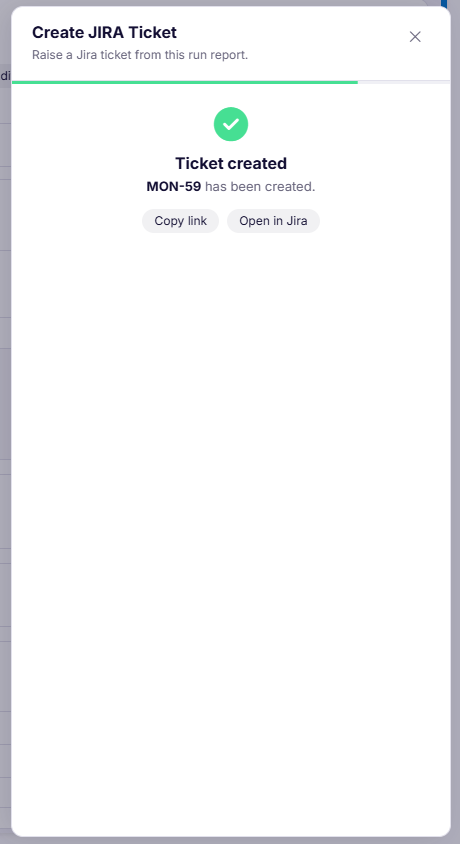
3. Click **“Create Ticket”** to submit. A confirmation notification will display the newly created Jira issue ID and a direct link.
 
***
## Benefits of Qyrus Device Farm Integration
* **Zero Context Switching:** Testers never need to leave the Device Farm workspace to open Jira in another tab, take manual screenshots, or paste device specifications.
* **Rich Diagnostic Context:** Tickets automatically include device OS version, screen resolution, model, session timestamp, and screenshot evidence.
* **End-to-End Traceability:** Keep your development and testing sprints synchronized with real-time updates across Jira and Qyrus.
***
# Interrupts
## Introduction
**Interrupt testing** evaluates how a mobile application responds to sudden external system events—such as incoming phone calls, SMS notifications, alarms, and lock screen events—and verifies that the app gracefully recovers its previous state without crashing, losing user inputs, or corrupting session data.
***
### Why Interrupt Testing Matters:
* **Form & Payment Resilience:** Ensure that checkout forms, OTP inputs, or payment gateways do not reset when an interruption occurs.
* **Media & Audio Focus:** Verify that video or audio playback pauses during a call and resumes smoothly afterward.
* **State Preservation:** Confirm that app state is retained in background memory and restored upon app switching.
***
## Triggering Interrupts in Active Sessions
For real devices equipped with SIM/cellular capabilities, the **Phone Call** and **Message** icons appear in the device control bar during active manual testing and Object Spy sessions.

### 1. Triggering an Incoming Phone Call:
1. In an active session, navigate to the screen or workflow you wish to test (e.g., during video playback or mid-form entry).
2. Click the **Phone Call** icon on the control bar.
3. The platform simulates an incoming voice call on the remote device.
4. Observe the application behavior (e.g., call notification heads-up banner or full-screen dialer overlay).
5. Interact with or dismiss the call, and verify that the application returns seamlessly to its prior active state.

### 2. Triggering an Incoming SMS / Text Message:
1. Click the **Message (SMS)** icon on the control bar.
2. The platform sends a simulated incoming SMS text notification to the device.
3. Observe how the heads-up notification banner displays over your app.
4. Verify that tapping or dismissing the banner does not cause UI freezes or crashes.

***
# Supported Devices and Browsers List
Device Farm is designed to provide extensive testing coverage for your mobile and web applications by supporting a comprehensive catalog of physical smartphones, tablets, cloud devices, and desktop browser versions across multiple global data centers.
***
## Desktop Browsers
Device Farm supports the following desktop web browsers for testing web applications:
| Browser | Supported Versions | Operating System |
| ---------------- | ------------------ | ---------------- |
| Google Chrome | Latest, Latest-1 | Windows, Linux |
| Mozilla Firefox | Latest, Latest-1 | Windows, Linux |
| Apple Safari | Latest, Latest-1 | macOS |
| Microsoft Edge | Latest, Latest-1 | Windows |
| Samsung Internet | Latest, Latest-1 | Android Web |
***
## Mobile Devices
### Android Devices
Device Farm supports a diverse fleet of physical Android smartphones and tablets across all major manufacturers and form factors:
| Brand / Series | Form Factor |
| ---------------------------------- | --------------------- |
| **Samsung Galaxy S & Note** | Smartphone |
| **Samsung Galaxy A & Z Fold/Flip** | Smartphone / Foldable |
| **Samsung Galaxy Tab** | Tablet |
| **Google Pixel** | Smartphone |
| **OnePlus** | Smartphone |
| **Xiaomi / Redmi / POCO** | Smartphone |
| **Motorola** | Smartphone / Foldable |
| **Oppo / Vivo / Realme** | Smartphone |
***
### iOS Devices
Testing iOS and iPadOS applications on physical Apple hardware covers all major form factors:
| Model Series | Form Factor |
| -------------------------- | ----------- |
| **iPhone Pro Models** | Smartphone |
| **iPhone Standard Models** | Smartphone |
| **iPad Pro Series** | Tablet |
| **iPad Air & Mini Series** | Tablet |
***
## Real Devices vs Cloud Device Farm (AWS)
Device Farm provides access to two primary device infrastructure pools:
* **Dedicated & Shared Real Devices:** Physical hardware hosted in low-latency private enterprise data centers with real SIM card support, battery diagnostics, hardware sensor interaction, and WebRTC streaming.
* **Cloud Device Farm (AWS Integration):** On-demand cloud device pools for executing high-volume automated test matrices in parallel.
***
## Network & Firewall Whitelisting Prerequisites
### Whitelisting DNS for WebRTC Video Streaming
To ensure smooth, uninterrupted real-time video streaming and device control, your corporate network firewall or proxy must allow traffic to Qyrus WebRTC and TURN/STUN media servers.
***
# Biometric Bypass Feature for Real Devices
## 1. Introduction
The **Biometric Bypass** feature provides a seamless mechanism to bypass biometric authentication prompts—including fingerprint (Touch ID / Android BiometricPrompt) and facial recognition (Face ID)—during manual, automated, and AI-driven testing on real iOS and Android devices. This feature allows QA teams to automate and manually test secure login, checkout, and authorization workflows without requiring physical user biometrics on remote hardware.
***
### Benefits of Biometric Bypass:
* **Testing Acceleration**: Eliminates blocking authentication modals that prevent automated scripts or manual testers from reaching downstream app features.
* **Repeatable Regression Testing**: Run end-to-end regression suites repeatedly without manual biometric intervention.
* **Simulating Success & Fallback Scenarios**: Test both successful biometric authorizations and passcode fallback paths.
***
## 2. Enabling Biometric Bypass
You can utilize Biometric Bypass using two methods:
### Method A: Enable During Session Setup
1. When starting a manual or Object Spy session, choose your target device and uploaded application binary.
2. Toggle the **`Biometrics (Beta)`** switch on the session setup card.
3. Click **“Start Session”**. The session launches with biometric mocking automatically initialized for that application.

***
### Method B: Dynamic Trigger During an Active Session
1. If your application triggers a biometric prompt mid-test, locate the **Biometrics (Fingerprint)** icon on the device control bar.
2. Click the button to dispatch an instantaneous simulated biometric success event to the running app.
***
## App Behavior Demonstration
> #### The illustration below demonstrates app behavior first without biometric bypass enabled (prompt remains active) and then with the biometric bypass flag enabled (authenticates immediately):

***
## Compatibility & Requirements
* **Application Build:** Requires an instrumentable debug/staging build (`.apk`, `.ipa`, or `.aab`) signed for testing.
* **OS Support:** Supported across physical Android devices and iOS devices (iOS 14 through iOS 16; iOS 17+ support depends on application build entitlement configurations).
***
# File Upload Feature for Remote Real Devices
## 1. Introduction
The **File Upload** feature allows you to transfer files directly from your local computer into the local storage of a remote physical device during an active Device Farm session. This capability is essential for testing workflows that require local files, such as profile picture uploads, document scanning, test datasets (CSV/JSON), audio/video playback, and custom configuration files.
***
### Supported Platforms & Formats:
* **Supported Operating Systems:** Physical **Android** and **iOS** devices.
* **Supported File Formats:** Images (`.png`, `.jpg`, `.jpeg`, `.gif`), Documents (`.pdf`, `.docx`, `.txt`, `.csv`, `.json`), Media (`.mp4`, `.mp3`, `.wav`), and custom application data binaries.
***
## 2. Uploading Files During an Active Session
1. Start an active manual or Object Spy testing session on a target device [(learn more)](/device-farm/manual#creating-a-manual-device-session).
2. Locate the **File Upload** icon on the device control bar.
3. Click the button to open your operating system's file browser.
4. Select the file you wish to push to the remote device.
5. The button displays an upload spinner while the file is streamed securely to the device. A success notification confirms when the transfer completes.
***
### Platform-Specific Storage Locations:
#### **iOS Devices:**
Uploaded files are stored within the sandbox directory accessible by file-picker dialogues:
* **Location:** `Files App > On My iPhone > Chrome`

***
#### **Android Devices:**
Uploaded files are stored directly in the standard system download folder:
* **Location:** `Internal Storage > Downloads` (or `/sdcard/Download/`)

***
## 3. Verifying the Uploaded File on the Device
Once the transfer is complete, you can verify and access the file within your application:
* **On iOS:** Open the native **Files** app, navigate to **On My iPhone**, and open the **Chrome** folder.
* **On Android:** Open the native **Files** / **My Files** app or launch your app's file picker and select the **Downloads** directory.
***
# Frequently Asked Questions (FAQ)
Welcome to our Device Farm FAQ section! Here are some common questions and their answers to help you navigate our platform effectively.
***
## Supported Devices and Browsers
Device Farm provides extensive coverage across modern mobile device models, operating systems, and desktop browsers.
### Mobile Devices:
| Device Platform | Supported Form Factors |
| --------------- | ---------------------------------------- |
| Android | Smartphones, Tablets (Galaxy Tab series) |
| iOS | iPhones, iPads (Pro, Air, Mini) |
### Desktop Browsers:
| Browsers | Supported Versions | Operating System |
| ---------------- | ------------------ | ---------------- |
| Google Chrome | Latest, Latest-1 | Windows, Linux |
| Mozilla Firefox | Latest, Latest-1 | Windows, Linux |
| Apple Safari | Latest, Latest-1 | macOS |
| Microsoft Edge | Latest, Latest-1 | Windows |
| Samsung Internet | Latest, Latest-1 | Android Web |
> For the full catalog of supported devices and DNS whitelisting guidelines, refer to the [Supported Devices and Browsers List](/device-farm/supported-browser-and-device).
***
# Manual Testing
Interactively test and debug mobile applications and web browsers in real time. Gesture, swipe, tap, type, inspect, and perform comprehensive testing on real hardware directly from your desktop browser.
> **Note:** You can enable **Element Explorer** during session setup or launch to inspect UI elements and generate Appium locators concurrently while performing manual tests.
***
### Prerequisites:
* Having a project created [(click here for more information on project creation)](/device-farm/project-creation-and-setup#creating-a-project)
* (Optional) Uploading an application binary file (`.apk`, `.ipa`, `.apks`, `.aab`) [(click here for more information on uploading an application)](/device-farm/project-creation-and-setup#application-management)
***
## Creating a Manual Device Session
1. **Navigate to Sessions:** Under **Projects**, click on the **“Sessions”** button on your target project card.

2. **Click on “Mobile Session”:**

3. **Choose and Filter Devices:**
* Filter by **Platform** (`Android` or `iOS`).
* Filter by **Region** (US, UK/EU, India) to ensure low-latency connectivity.
* Filter by **Device Type** (Real Device or Cloud / AWS Device Farm).
* Filter by **Brand** (Samsung, Apple, Google, OnePlus, Xiaomi, Huawei, etc.) or search by device model name.
* Review device details on each card:
* **CPU, RAM, Resolution, and OS Version**
* **Dedicated vs Shared Device** indicator icons
* **Availability Status:** `Available` (ready to test), `Busy` (in use), or `Maintenance`
* **Device User Info:** For busy devices on Team or Enterprise tiers, hover/click the user icon to see who is currently using the device.

4. **Configure Session Settings:**
* **Session Name (Required):** Enter a descriptive name for your testing session.

* **Application File (Optional):** Choose an uploaded application binary from the dropdown. The app will be automatically installed when the session starts.
> *Note:* You can also install or switch applications later inside an active session using the **In-Session App Installer**.

* **Element Explorer Toggle:** Enable this toggle to start the session in Object Spy / Element Explorer mode for inspecting UI attributes and testing XPath locators.
* **Biometrics Bypass Toggle (Beta):** Enable this toggle to bypass fingerprint and Face ID prompts for instrumentable debug builds.
* **Reset App Toggle:** Automatically clear application user cache and data before starting.
* **Switch to Old Device Interface:** Toggle if you prefer the classic legacy single-pane view over the modern split-pane workspace.
5. **Click “Start Session”:**
 
***
## Workspace Layout
Device Farm provides a modern **Split-Pane Workspace** designed for maximum productivity:
* **Left Pane (Device Stream & Quick Controls):** Renders the ultra-responsive, low-latency WebRTC video stream of the physical device with touch interaction overlay and collapsible device control bar.
* **Right Pane (Metrics, Logs & Info):** Displays live device information (OS, CPU architecture, RAM, Resolution, Device UUID), real-time streaming **Device Logs**, and **Appium Logs**.
* **Split Resizing:** Drag the divider between panes to customize the view to your screen dimensions.

***
## Navigation & Control Bar
Next to the interactive device screen is a control bar providing hardware, software, and debugging controls.
### Device & Session Info:
The top of the session panel provides complete device specifications and runtime details:

* **Session Name:** Name specified during test initiation.
* **Device Name & Region:** Device model and hosting data center location.
* **Hardware Specs:** OS Version, CPU Architecture, RAM, Resolution, and unique Device ID.
***
### Control Bar Actions:
* **Collapse / Expand Bar:** Click the chevron button to collapse the control bar into icon-only mode or expand it with full labels.
*  **Send Keys / Clipboard:** Click **Send Keys** to open the clipboard text input modal. Type or paste long strings, URLs, or credentials and click *Send as Keys* to type them directly into the focused input field on the device.
*  **Capture Keyboard:** Toggle the physical keyboard capture. When enabled, keystrokes typed on your computer keyboard are sent directly to the remote device without using the on-screen soft keyboard.
*  **Screenshot:** Take an instant screenshot of the device display. Captured images are stored in the test report and can be downloaded immediately.
*  **Rotate Device (Orientation):** Click **Rotate** to toggle device orientation between Portrait and Landscape modes.
*  **File Upload:** Click **File Upload** to transfer files from your computer directly into the remote device storage (`Downloads` folder on Android; `Files > On My iPhone > Chrome` on iOS).
*  **In-Session App Installation:** Click **Install App** to open the in-session installer. Upload a new `.apk`, `.ipa`, `.apks`, or `.aab` file or choose an existing uploaded app to deploy onto the device on-the-fly without disconnecting.
*  **Create Jira Ticket:** Click the **Jira** icon to open the integrated bug reporting modal. Select your Jira project, issue type (Bug, Task, Sub-task with Parent ID, or Xray test category), enter Summary & Description, choose Priority, and submit. The current device screenshot is automatically attached.
* **Phone Call & SMS Interrupts:** For telephony-enabled devices with an active SIM/number:
* **Trigger Call:** Simulates an incoming voice call to verify how your app handles call interruptions.
* **Trigger SMS:** Simulates an incoming text message notification.
* **Biometrics Bypass:** For supported apps, click the fingerprint icon to trigger biometric authentication bypass dynamically during testing.
* **Lock & Unlock Device:** Power off / lock the device screen, or wake / unlock the device (iOS & Android).
* **Volume Controls:** Hardware **Volume Up** and **Volume Down** buttons.
* **Hardware Navigation Buttons:**
* **Back (`KEYCODE_BACK`):** Navigate back to the previous screen.
* **Home (`KEYCODE_HOME`):** Return to the home screen.
* **Overview / App Switcher (`KEYCODE_APP_SWITCH`):** Open the recent applications switcher (Android).
*  **Terminate App:** Force terminate the currently running foreground application (iOS).
*  **Network Shaping & Wi-Fi Selector:** Choose from preset network profiles (2G, 3G, 4G, Good, Poor) or custom profiles to simulate varying bandwidth, latency, and packet loss. You can also click *Add..* to configure and apply a new network profile on the fly.
*  **Video Resolution Selector:** For WebRTC iOS sessions, choose your desired stream quality (e.g., `Auto`, `720p`, `1080p`).
* **Zoom Controls:** Use the **Zoom In (+)**, **Zoom Out (-)**, and **Reset Zoom** buttons to adjust device viewport scaling.
* **Disconnect Session:** Click the red power button to disconnect from the device. A confirmation modal will appear. Once confirmed, the session is cleanly released and the comprehensive test report is generated.
***
### **In-Session App Installation**
The in-session app installer allows testers to test multiple versions of an app or test app upgrades without losing the session connection.
1. Click **Install App** on the control bar.
2. In the dialog, you can:
* **Upload New App:** Drag and drop or browse for a new `.apk`, `.ipa`, `.apks`, or `.aab` binary. The file will upload via fast multipart transfer.
* **Choose Existing App:** Select any completed application from your project repository.
3. Click **Install** to deploy and launch the application on the remote device.

***
### **Device Logs**
Live logs stream system-level messages, application traces, and crash stack traces in real time from the moment the device connects.
Click on **`Show Logs`** to open the logs panel and **`Hide Logs`** to collapse it.


#### Log Viewer Controls:

*  **Clear Logs:** Clears the current log console buffer.
*  **Pause / Lock Logs:** Pauses live log autoscroll so you can inspect a specific stack trace while the session continues.
*  **Refresh Logs:** Refreshes log buffer from the device daemon.
*  **Disconnect Logs:** Pauses log stream to optimize network bandwidth.
***
### **Generate JSON Capabilities**
Click **Generate JSON** on the session interface to view and export the current session configuration, device UDID, and authentication payload formatted for Appium automation scripts.

***
### **Network Shaping**
Network shaping allows you to simulate real-world mobile network conditions by adjusting bandwidth, latency (delay), and packet loss.
Select a preset network profile or choose a custom-created network profile by clicking on the Wi-Fi dropdown menu on the control bar. [Click here to view instructions on creating custom network profiles.](/device-farm/project-creation-and-setup#network-profiles-management)

***
## Creating a Manual Browser Session
Device Farm enables real desktop browser testing across Google Chrome, Mozilla Firefox, Apple Safari, Microsoft Edge, and Samsung Internet.
1. **Under Projects, click on “Sessions” for your project**

2. **Click on “Web Browsers” tab**

3. **Click on “Browser Sessions”**

4. **Choose a browser from the list (Chrome, Firefox, Safari, Edge)**

5. **Enter a “Session Name” and click “Start Session”**
 
6. **Interacting with the Browser:**
* Interact directly with web pages, test responsive breakpoints, and perform functional tests.
* Use the draggable floating control widget to disconnect when done.
7. **End Session:** Click **Disconnect** to terminate the session and view the test execution report.

***
### **Analyzing Test Results**
Once a manual test session is ended, review and analyze the detailed results:
* **Test Report:** Access the comprehensive test report containing full session video recording, device vitals graphs, device logs, screenshots, and metadata.\
[**Click here to learn more about Test Reports and Analysis.**](/device-farm/test-reports-and-analysis)
* **Bug Reporting:** Document bugs directly from the report view or submit them to Jira ([Reporting Bugs](/device-farm/integrations#integrations-with-collaboration-tools)).
***
# Automation
### Running Automation Sessions
Automated testing allows you to leverage Qyrus Device Farm's real Android and iOS devices to execute your automated test scripts at scale. During and after execution, Device Farm provides comprehensive reporting that includes real-time live previews, video recordings, time-series device vitals, Appium logs, and device system logs.
***
#### Prerequisites:
* A Qyrus Device Farm project created [(click here for project creation)](/device-farm/project-creation-and-setup#creating-a-project)
* Application binary uploaded to the project [(click here for application upload)](/device-farm/project-creation-and-setup#application-management)
* **Appium:** Appium client and server (supports Appium 1.x and Appium 2.x)
* **Development Environment:**
* **Java:** JDK 8, 11, or 17+ with an IDE (Eclipse, IntelliJ IDEA, VS Code) and build tool (Maven/Gradle).
* **Python (Optional):** Python 3.8+ with `Appium-Python-Client` and `pytest`/`unittest`.
* **JavaScript/TypeScript (Optional):** Node.js with WebdriverIO or `webdriverio`/`appium`.
***
### Setting Up Automated Tests
#### Creating an Automation Device Session via Quick Setup:
1. **Under Projects, click on “Sessions” for your project:**

2. **Click on the “Automation” tab and select “Quick Setup Guide”:**

***
### Configuring Test Parameters & Capabilities
1. **Choose a Device:** Filter devices by region, platform (Android / iOS / Cloud), brand, or search by model.

2. **Select Application File:**
* **Android:** Select the uploaded `.apk`, `.apks`, or `.aab` file. The tool automatically detects the App Package and allows selecting the initial launch **App Activity**.
* **iOS:** Select the uploaded `.ipa` file.

3. **Click “Generate JSON”:**
* The interactive CodeMirror editor outputs the JSON capabilities formatted for your testing framework.
 
4. **Add Capabilities into Your Framework:**
* Copy the generated capabilities and paste them into your test framework setup method.
 
***
### Cloud Device Farm (AWS) Automation
For devices running on AWS Device Farm cloud infrastructure:
1. Generate the Cloud Device payload from the **Remote Devices** tab in Project Setup.
2. Start the automation session using the REST API endpoint:
* `POST /device-farm/automation/provider/start?projectId=`
3. Execute your Appium test suite targeting the cloud endpoint.
4. Stop the session using the endpoint:
* `POST /device-farm/automation/provider/stop?projectId=`
***
### Code Examples
#### 1. Java (TestNG & Appium)
```java
import java.net.MalformedURLException;
import java.net.URL;
import org.openqa.selenium.By;
import org.openqa.selenium.remote.DesiredCapabilities;
import org.testng.annotations.AfterTest;
import org.testng.annotations.BeforeTest;
import org.testng.annotations.Test;
import io.appium.java_client.android.AndroidDriver;
public class DeviceFarmAutomation {
private AndroidDriver driver;
@BeforeTest
public void setUp() throws MalformedURLException {
DesiredCapabilities desiredCapabilities = new DesiredCapabilities();
desiredCapabilities.setCapability("deviceName", "");
desiredCapabilities.setCapability("platformName", "Android");
desiredCapabilities.setCapability("automationName", "UiAutomator2");
desiredCapabilities.setCapability("platformVersion", "");
desiredCapabilities.setCapability("udid", "");
desiredCapabilities.setCapability("app", "");
desiredCapabilities.setCapability("appium:AuthToken", "");
desiredCapabilities.setCapability("appium:Authentication", "");
desiredCapabilities.setCapability("appium:SessionName", "My Automation Run");
URL remoteUrl = new URL("https:///wd/hub");
driver = new AndroidDriver(remoteUrl, desiredCapabilities);
}
@Test
public void testLogin() throws InterruptedException {
System.out.println("Session ID: " + driver.getSessionId());
Thread.sleep(5000);
driver.findElement(By.id("com.example.app:id/username")).sendKeys("testuser");
driver.findElement(By.id("com.example.app:id/password")).sendKeys("password123");
driver.findElement(By.id("com.example.app:id/loginBtn")).click();
Thread.sleep(5000);
}
@AfterTest
public void tearDown() {
if (driver != null) {
driver.quit();
}
}
}
```

> **Note:** `remoteUrl`, `appium:AuthToken` (Project Token), and `appium:Authentication` (User API Token) authenticate and route your test traffic securely to the target real device.
***
#### 2. Python (Appium-Python-Client & PyTest)
```python
import pytest
from appium import webdriver
from appium.options.android import UiAutomator2Options
@pytest.fixture(scope="function")
def driver():
options = UiAutomator2Options()
options.platform_name = "Android"
options.device_name = ""
options.platform_version = ""
options.udid = ""
options.app = ""
options.set_capability("appium:AuthToken", "")
options.set_capability("appium:Authentication", "")
options.set_capability("appium:SessionName", "Python Automation Run")
driver = webdriver.Remote("https:///wd/hub", options=options)
yield driver
driver.quit()
def test_login_flow(driver):
driver.implicitly_wait(10)
username_field = driver.find_element(by="id", value="com.example.app:id/username")
username_field.send_keys("testuser")
login_button = driver.find_element(by="id", value="com.example.app:id/loginBtn")
login_button.click()
```
***
#### 3. JavaScript / TypeScript (WebdriverIO)
```javascript
import { remote } from 'webdriverio';
const opts = {
hostname: '',
path: '/wd/hub',
protocol: 'https',
capabilities: {
platformName: 'Android',
'appium:deviceName': '',
'appium:platformVersion': '',
'appium:udid': '',
'appium:automationName': 'UiAutomator2',
'appium:app': '',
'appium:AuthToken': '',
'appium:Authentication': '',
'appium:SessionName': 'WebdriverIO Automation Run'
}
};
async function runTest() {
const client = await remote(opts);
const searchInput = await client.$('id:com.example.app:id/search');
await searchInput.setValue('Qyrus Device Farm');
await client.deleteSession();
}
runTest();
```
***
### Running and Managing Automated Tests
1. **Start Automated Tests:** Run your test script from your local machine, IDE, or CI/CD pipeline (Jenkins, GitHub Actions, GitLab CI).
2. **Monitor Live Execution:**
* Switch to the **Automation** tab in the Device Farm dashboard.
* The running test appears with a live stream preview card and real-time execution status (`Running`, `Completed`, `Failed`).
 
3. **Live Appium Logs:** Click on the active session to view live Appium streaming logs to debug commands and element locators as they execute.
4. **Access Detailed Reports:** Once execution finishes, click **Show Details** to view the comprehensive test report containing Appium logs, device system logs, device vitals graphs, screenshots, and video recordings. [Learn more about Test Reports](/device-farm/test-reports-and-analysis#test-reports).
***
# Test-Reports-and-Analysis
Comprehensive test reports are a fundamental aspect of your testing workflow, providing deep, actionable insights into your test executions across manual sessions and automated Appium runs. Qyrus Device Farm generates detailed reports encompassing performance vitals, full session video recordings, screenshots, system logs, and Appium automation traces.
***
### What is Included in Test Reports:
1. **Session & Device Information:** Complete summary including session name, execution date, duration, user account, hardware specifications, and device identifiers.
2. **Interactive Device Vitals:** Performance metrics tracking CPU utilization, memory consumption, and network throughput over the session timeline, with export to CSV and PNG formats.
3. **Full Video Recording:** Complete high-definition video evidence capturing every user gesture, transition, and app response.
4. **Screenshots Gallery:** Timestamped gallery of all manual and automated screenshots captured during the session.
5. **Device System Logs:** Live system-level logs and logcat/syslog dumps capturing app events, background tasks, and error traces.
6. **Appium Logs (for Automation):** Step-by-step Appium automation command logs with HTTP request/response payloads for debugging automation failures.

***
## Steps to View Reports
1. Navigate to **Sessions** for your project.
2. In the sessions summary table (Manual or Automation tab), locate your test execution and click **“Show Detailsâ€**.
 
***
## Session Information & Email Sharing
The top section of the report provides quick metadata regarding the execution:
* **Session Name:** Name specified during test initiation.
* **Date & Region:** Timestamp of the test run and data center region where the device was hosted.
* **Session Duration:** Total active time (e.g., `0h 14m 32s`).
* **User Email:** Email ID of the tester who ran the session.

### Sharing Reports via Email:
1. Click the **Envelope** (Email) icon on the Session Info card.
2. Enter one or more recipient email addresses (comma-separated).
3. Click **“Sendâ€** to dispatch a report summary link.

***
## Device Information
The **Device Info** card outlines the hardware and platform specs of the host device:
* **CPU Architecture:** Processor model and core specs.
* **Screen Resolution:** Pixel width and height (e.g., `1080x2400`).
* **RAM:** Total device physical memory.
* **OS Version:** Android or iOS platform release.
* **Device Type:** *Dedicated* or *Shared* device allocation.
* **Device Name & Device UUID:** Unique hardware and cloud identifiers.

***
## Full Video Recording Playback
Device Farm records the full visual stream of every testing session:
* Click **“Play Videoâ€** in the video card to launch the video playback modal.
* Use playback controls to scrub through the timeline, pause at key moments, and verify visual bugs or rendering issues.

***
## Viewing & Exporting Device Vitals
Click on the **“Device Vitalsâ€** tab to analyze resource consumption across the session lifecycle:
* **CPU Usage Graph:** Time-series line chart displaying CPU percentage utilized by your application and system processes.
* **Memory Usage Graph:** Tracks RAM consumption over time to help pinpoint memory leaks.
* **Network Usage Graph:** Monitors network bandwidth upload and download rates.

### Exporting Vitals Data:
* **Download Vitals.csv:** Export the raw time-series data points as a `.csv` spreadsheet for external performance analysis.
* **Download Vitals.png:** Export high-resolution rendered graphical charts as `.png` images for inclusion in QA presentations and stakeholder reports.
> *Note:* Device vitals collection is supported on real Android and iOS devices.
***
## Accessing Logs & Screenshots
### 1. Device Logs:
Click the **“Device Logs”** tab to inspect system messages, crash logs, and application standard output captured during the session. You can search within the log text or export the full log file.

### 2. Screenshots Gallery:
Click the **“Screenshots”** tab to view all screenshots captured manually via the control bar or captured programmatically during automation runs. Click on any thumbnail to view the full-size image or download it.

### 3. Appium Logs (Automation Sessions):
For automation runs, switch to the **“Appium Logs”** tab to review the server interaction log, including HTTP request routes, payload arguments, locator strategies evaluated, and session termination events.
***
# Element Explorer Feature for Appium Automation Testing
## **Introduction**
The **Element Explorer** (also referred to as **Object Spy**) feature simplifies identifying UI elements on Android and iOS devices, making automation script authoring using the Appium framework efficient, robust, and accurate. Element Explorer enables you to inspect the live application user interface, capture screen DOM dumps, highlight elements on an interactive screenshot canvas, inspect complete XML attributes, test XPath locators live, and copy ready-to-use locators directly into your automation codebase.
### Benefits of using Element Explorer:
* **Accelerated Locator Identification**: Eliminates guesswork and manual trial-and-error by generating verified locators instantly.
* **Accurate & Multi-Locator Support**: Generates Accessibility IDs, Resource IDs, Names, Class Names, Index locators, and XPath queries.
* **Live XPath Evaluator**: Validate custom XPath queries directly against the screen DOM before adding them to your test framework.
* **Hierarchical DOM Tree Exploration**: Traverse parent, child, and sibling elements to locate nested or dynamic UI components.

***
## 1. Accessing Element Explorer
Starting an Element Explorer session is straightforward:
1. Under **Projects**, click **“Sessions”** on your project card.
2. Click **“Mobile Session”** to open the device catalog.
3. Select your desired Android or iOS real device and your application binary.
4. Toggle the **`Element Explorer`** switch to enable Object Spy mode.
5. Click **“Start Session”**.

***
## 2. Capturing Screen Dumps & Inspecting Elements
### 1. Interactive Device View & Screen Dump:
* In the left pane, navigate your app to the specific screen you want to inspect.
* Click the **“Dump Screen”** button (the double-chevron icon) on the center divider.
* The platform captures a high-resolution screenshot and fetches the complete UI component hierarchy.

### 2. Interactive Screenshot Canvas & Highlighter Colors:
* Click on any visual component directly within the right-hand screenshot canvas.
* The inspected element is instantly highlighted with a bounding box.
* **Color Picker:** Use the eyedropper color picker on the top right to customize your highlighter box color (**Cyan**, **Red**, or **Purple**) for optimal visibility across dark and light app themes.
### 3. Object Finder & Locators:
Once an element is clicked, the **Object Finder** panel displays its available locators:
* **Accessibility ID:** Ideal for cross-platform automation.
* **Name / Text:** The element's displayed label or content-description.
* **ID / Resource-ID:** Android `package:id` or iOS identifier.
* **Class Name:** The underlying UI class (e.g., `android.widget.Button`, `XCUIElementTypeButton`).
* **Id Index, Name Index, Class Index:** Ordinal positions within the hierarchy.
* **One-Click Copy:** Click the copy icon next to any locator value to copy it immediately to your clipboard.

***
## 3. Advanced Inspection Tools
### 1. More Attributes Modal:
Click **“More Attributes”** at the top of the Object Finder panel to open a full modal table containing all XML attributes associated with the selected element (e.g., `bounds`, `checkable`, `checked`, `clickable`, `enabled`, `focusable`, `focused`, `scrollable`, `selected`, `displayed`).
### 2. XPath Verification Tool:
Test and refine XPath queries interactively without executing test scripts:
1. In the **“Check your Xpath”** input field, enter your candidate XPath expression (e.g., `//android.widget.Button[@text='Login']`).
2. Click **“Verify”**.
3. The evaluator will instantly check the DOM tree and return a success confirmation (e.g., *"1 element found"*) or an error message if the XPath does not match.
### 3. DOM Tree Hierarchy:
The **“Elements in hierarchy”** tree view allows you to browse the complete XML structure:
* Expand and collapse tree nodes (`mat-tree`) to navigate parent containers, layouts, and leaf elements.
* Selecting a node in the tree automatically highlights the corresponding element on the canvas and loads its attributes in the Object Finder.
***
## 4. Using Locators in Automation Scripts
Copy the generated locators and incorporate them into your automation framework:
### Python Example:
```python
from appium import webdriver
from appium.options.ios import XCUITestOptions
options = XCUITestOptions()
options.platform_name = "iOS"
options.device_name = "iPhone 14 Pro"
options.udid = ""
options.app = ""
options.set_capability("appium:AuthToken", "")
options.set_capability("appium:Authentication", "")
driver = webdriver.Remote('/wd/hub', options=options)
# Using copied Accessibility ID
login_button = driver.find_element(by="accessibility id", value="login_button_id")
login_button.click()
# Using verified XPath
username_field = driver.find_element(by="xpath", value="//XCUIElementTypeTextField[@name='username_input']")
username_field.send_keys("demo_user")
```
### Java Example:
```java
// Using ID locator
WebElement loginBtn = driver.findElement(By.id("com.example.app:id/btnLogin"));
loginBtn.click();
// Using Accessibility ID
WebElement submitBtn = driver.findElement(AppiumBy.accessibilityId("submit_action"));
submitBtn.click();
```
***
## 5. In-Session App Installation
You can install or switch applications on-the-fly during an active Element Explorer session without disconnecting:
1. Click the **Install App** icon on the control bar.
2. Select an existing uploaded binary from your project repository or drag-and-drop a new build file (`.apk`, `.ipa`, `.apks`, `.aab`).
3. Click **Install App** to deploy and launch the application directly on the device.

***
# Integrations with Collaboration Tools
Integrating your mobile and web testing workflows with collaboration and project management tools enhances QA productivity, streamlines defect tracking, and facilitates faster bug resolution. Qyrus Device Farm seamlessly connects with Jira to enable one-click bug filing directly from live sessions and test reports.
***
## Why Integrate with Collaboration Tools?
* **Raise Issues Instantly:** Create defects and tasks with attached device screenshots, session metadata, and reproduction steps without leaving Device Farm.
* **Streamline Team Collaboration:** Maintain a unified source of truth in Jira for developers, QA engineers, and product owners.
* **Traceability with Xray & Sub-Tasks:** Link testing issues to existing Jira stories, epics, and Xray test management categories.
> #### [Click here to learn how to configure Jira Integrations in Project Setup](/device-farm/project-creation-and-setup#integrations-management)
***
## Utilizing Jira Integration in Device Farm
Jira integration can be invoked from two places:
1. **Inside an Active Testing Session:** Click the **Jira** icon on the device control bar to capture a defect at the exact moment an issue occurs.
2. **From the Test Report:** Review session logs or video recordings post-execution and click the **Jira** icon to file a ticket.
***
## Steps to File a Defect to Jira
1. Click on the **Jira** icon on the control bar or inside the test report.

2. The **Create Ticket** modal will appear with fields populated from your Jira instance:

### Ticket Form Fields:
* **Select Configuration (Required):** Choose your configured Jira integration from the dropdown.
* **Reporter:** Displays the authenticated user associated with the token.
* **Select Jira Project (Required):** Select the destination Jira project (shows project avatar and key).
* **Issue Type (Required):** Select from supported Jira issue types such as *Bug*, *Task*, *Story*, *Improvement*, or *Sub-task*.
* **Parent Id (for Sub-tasks):** When *Sub-task* is selected, enter the parent issue key (e.g., `PROJ-1234`).
* **Summary (Required):** Enter a clear, concise headline for the ticket.
* **Description (Required):** Provide detailed steps to reproduce, expected results, and observed behavior.
* **Scope of Automation (Xray Integration):** If your project uses Xray, select the automation scope from the configured options.
* **Testcase Category (Xray Integration):** Select the category classification for Xray test management.
* **Priority (Required):** Set the priority level (*Highest*, *High*, *Medium*, *Low*, *Lowest*) with icon indicators.
* **Automatic Attachment:** The current device screenshot and session context are automatically attached to the created Jira issue.
3. Click **“Create Ticket”** to submit. A confirmation notification will display the newly created Jira issue ID and a direct link.
 
***
## Benefits of Qyrus Device Farm Integration
* **Zero Context Switching:** Testers never need to leave the Device Farm workspace to open Jira in another tab, take manual screenshots, or paste device specifications.
* **Rich Diagnostic Context:** Tickets automatically include device OS version, screen resolution, model, session timestamp, and screenshot evidence.
* **End-to-End Traceability:** Keep your development and testing sprints synchronized with real-time updates across Jira and Qyrus.
***
# Interrupts
## Introduction
**Interrupt testing** evaluates how a mobile application responds to sudden external system events—such as incoming phone calls, SMS notifications, alarms, and lock screen events—and verifies that the app gracefully recovers its previous state without crashing, losing user inputs, or corrupting session data.
***
### Why Interrupt Testing Matters:
* **Form & Payment Resilience:** Ensure that checkout forms, OTP inputs, or payment gateways do not reset when an interruption occurs.
* **Media & Audio Focus:** Verify that video or audio playback pauses during a call and resumes smoothly afterward.
* **State Preservation:** Confirm that app state is retained in background memory and restored upon app switching.
***
## Triggering Interrupts in Active Sessions
For real devices equipped with SIM/cellular capabilities, the **Phone Call** and **Message** icons appear in the device control bar during active manual testing and Object Spy sessions.

### 1. Triggering an Incoming Phone Call:
1. In an active session, navigate to the screen or workflow you wish to test (e.g., during video playback or mid-form entry).
2. Click the **Phone Call** icon on the control bar.
3. The platform simulates an incoming voice call on the remote device.
4. Observe the application behavior (e.g., call notification heads-up banner or full-screen dialer overlay).
5. Interact with or dismiss the call, and verify that the application returns seamlessly to its prior active state.

### 2. Triggering an Incoming SMS / Text Message:
1. Click the **Message (SMS)** icon on the control bar.
2. The platform sends a simulated incoming SMS text notification to the device.
3. Observe how the heads-up notification banner displays over your app.
4. Verify that tapping or dismissing the banner does not cause UI freezes or crashes.

***
# Supported Devices and Browsers List
Device Farm is designed to provide extensive testing coverage for your mobile and web applications by supporting a comprehensive catalog of physical smartphones, tablets, cloud devices, and desktop browser versions across multiple global data centers.
***
## Desktop Browsers
Device Farm supports the following desktop web browsers for testing web applications:
| Browser | Supported Versions | Operating System |
| ---------------- | ------------------ | ---------------- |
| Google Chrome | Latest, Latest-1 | Windows, Linux |
| Mozilla Firefox | Latest, Latest-1 | Windows, Linux |
| Apple Safari | Latest, Latest-1 | macOS |
| Microsoft Edge | Latest, Latest-1 | Windows |
| Samsung Internet | Latest, Latest-1 | Android Web |
***
## Mobile Devices
### Android Devices
Device Farm supports a diverse fleet of physical Android smartphones and tablets across all major manufacturers and form factors:
| Brand / Series | Form Factor |
| ---------------------------------- | --------------------- |
| **Samsung Galaxy S & Note** | Smartphone |
| **Samsung Galaxy A & Z Fold/Flip** | Smartphone / Foldable |
| **Samsung Galaxy Tab** | Tablet |
| **Google Pixel** | Smartphone |
| **OnePlus** | Smartphone |
| **Xiaomi / Redmi / POCO** | Smartphone |
| **Motorola** | Smartphone / Foldable |
| **Oppo / Vivo / Realme** | Smartphone |
***
### iOS Devices
Testing iOS and iPadOS applications on physical Apple hardware covers all major form factors:
| Model Series | Form Factor |
| -------------------------- | ----------- |
| **iPhone Pro Models** | Smartphone |
| **iPhone Standard Models** | Smartphone |
| **iPad Pro Series** | Tablet |
| **iPad Air & Mini Series** | Tablet |
***
## Real Devices vs Cloud Device Farm (AWS)
Device Farm provides access to two primary device infrastructure pools:
* **Dedicated & Shared Real Devices:** Physical hardware hosted in low-latency private enterprise data centers with real SIM card support, battery diagnostics, hardware sensor interaction, and WebRTC streaming.
* **Cloud Device Farm (AWS Integration):** On-demand cloud device pools for executing high-volume automated test matrices in parallel.
***
## Network & Firewall Whitelisting Prerequisites
### Whitelisting DNS for WebRTC Video Streaming
To ensure smooth, uninterrupted real-time video streaming and device control, your corporate network firewall or proxy must allow traffic to Qyrus WebRTC and TURN/STUN media servers.
***
# Biometric Bypass Feature for Real Devices
## 1. Introduction
The **Biometric Bypass** feature provides a seamless mechanism to bypass biometric authentication prompts—including fingerprint (Touch ID / Android BiometricPrompt) and facial recognition (Face ID)—during manual, automated, and AI-driven testing on real iOS and Android devices. This feature allows QA teams to automate and manually test secure login, checkout, and authorization workflows without requiring physical user biometrics on remote hardware.
***
### Benefits of Biometric Bypass:
* **Testing Acceleration**: Eliminates blocking authentication modals that prevent automated scripts or manual testers from reaching downstream app features.
* **Repeatable Regression Testing**: Run end-to-end regression suites repeatedly without manual biometric intervention.
* **Simulating Success & Fallback Scenarios**: Test both successful biometric authorizations and passcode fallback paths.
***
## 2. Enabling Biometric Bypass
You can utilize Biometric Bypass using two methods:
### Method A: Enable During Session Setup
1. When starting a manual or Object Spy session, choose your target device and uploaded application binary.
2. Toggle the **`Biometrics (Beta)`** switch on the session setup card.
3. Click **“Start Session”**. The session launches with biometric mocking automatically initialized for that application.

***
### Method B: Dynamic Trigger During an Active Session
1. If your application triggers a biometric prompt mid-test, locate the **Biometrics (Fingerprint)** icon on the device control bar.
2. Click the button to dispatch an instantaneous simulated biometric success event to the running app.
***
## App Behavior Demonstration
> #### The illustration below demonstrates app behavior first without biometric bypass enabled (prompt remains active) and then with the biometric bypass flag enabled (authenticates immediately):

***
## Compatibility & Requirements
* **Application Build:** Requires an instrumentable debug/staging build (`.apk`, `.ipa`, or `.aab`) signed for testing.
* **OS Support:** Supported across physical Android devices and iOS devices (iOS 14 through iOS 16; iOS 17+ support depends on application build entitlement configurations).
***
# File Upload Feature for Remote Real Devices
## 1. Introduction
The **File Upload** feature allows you to transfer files directly from your local computer into the local storage of a remote physical device during an active Device Farm session. This capability is essential for testing workflows that require local files, such as profile picture uploads, document scanning, test datasets (CSV/JSON), audio/video playback, and custom configuration files.
***
### Supported Platforms & Formats:
* **Supported Operating Systems:** Physical **Android** and **iOS** devices.
* **Supported File Formats:** Images (`.png`, `.jpg`, `.jpeg`, `.gif`), Documents (`.pdf`, `.docx`, `.txt`, `.csv`, `.json`), Media (`.mp4`, `.mp3`, `.wav`), and custom application data binaries.
***
## 2. Uploading Files During an Active Session
1. Start an active manual or Object Spy testing session on a target device [(learn more)](/device-farm/manual#creating-a-manual-device-session).
2. Locate the **File Upload** icon on the device control bar.
3. Click the button to open your operating system's file browser.
4. Select the file you wish to push to the remote device.
5. The button displays an upload spinner while the file is streamed securely to the device. A success notification confirms when the transfer completes.
***
### Platform-Specific Storage Locations:
#### **iOS Devices:**
Uploaded files are stored within the sandbox directory accessible by file-picker dialogues:
* **Location:** `Files App > On My iPhone > Chrome`

***
#### **Android Devices:**
Uploaded files are stored directly in the standard system download folder:
* **Location:** `Internal Storage > Downloads` (or `/sdcard/Download/`)

***
## 3. Verifying the Uploaded File on the Device
Once the transfer is complete, you can verify and access the file within your application:
* **On iOS:** Open the native **Files** app, navigate to **On My iPhone**, and open the **Chrome** folder.
* **On Android:** Open the native **Files** / **My Files** app or launch your app's file picker and select the **Downloads** directory.
***
# Frequently Asked Questions (FAQ)
Welcome to our Device Farm FAQ section! Here are some common questions and their answers to help you navigate our platform effectively.
1. What is DeviceFarm and mention it's advantage?
Device Farm, your all-in-one platform for manual and automated testing on real devices. Device Farm provides developers with a powerful testing environment to ensure the quality and performance of their applications across a wide range of devices and configurations.
* **Access to Real Devices/Browsers:** Device Farm offers a diverse set of real devices including smartphones and tablets, allowing you to test your application on actual hardware.
* **Manual Testing:** You can manually interact with devices using your mouse and keyboard, simulating real user interactions to identify issues and explore your app's usability.
* **Automated Testing with Appium:** Automate your tests using the popular Appium framework, enabling you to run scripted tests and catch regressions early in the development process.
* **Comprehensive Test Reports:** After completing tests, Device Farm generates detailed reports that include device vitals, logs, videos, screenshots, and performance metrics for thorough analysis.
2. What are all file types we can upload in the Applications Files tab?
You can upload the following file types in the Applications Files tab:
* APK (Android Package)
* IPA (iOS Application Archive)
* APKS (Android Package Set)
* AAB (Android App Bundle)
3. How many files can we upload in the Applications Files tab?
You can upload multiple files in the Applications Files tab. The limit is 10 files and the files are archived every 3 months.
4. In the Authentication tab, what happens if the user provides an invalid email and password?
If an invalid email and password are provided in the Authentication tab, the system will not authenticate the user, and access to the platform will be denied.
5. Can a user create or edit the JIRA Configuration with the same name?
No, you cannot create or edit a JIRA Configuration with the same name. Each configuration should have a unique name.
6. What's the use of Network Profile in Device Farm?
Network Profiles simulate different network conditions to test app behavior under various network scenarios, such as slow connections or high latency.
7. In the Network Profiles tab, what are bandwidth, delay, and loss, and how are they used in Device Farm?
* **Bandwidth**: Represents the speed of the network connection.
* **Delay**: Introduces latency in network communication.
* **Loss**: Simulates packet loss in the network.
These parameters help you test how your app performs under different network conditions.
8. Why do we have a Swagger Docs section in Device Farm?
The Swagger Docs section provides documentation for APIs in your application, allowing you to understand endpoints, request/response structures, and more.
9. In the Swagger Docs tab, what's the use of Servers, and why are they displayed?
Servers define the base URL for API requests. They're displayed to help you correctly configure endpoints for testing.
10. In the Swagger Docs tab, what are schemas, and what's their use?
Schemas define the structure of data objects exchanged via APIs. They help you understand the expected format of request and response data.
11. In a Manual session, what is Biometrics?
Biometrics refers to the use of unique physical characteristics, such as fingerprints or facial recognition, for device authentication.
**Note:** Biometric feature may not work on iOS 17+
12. Why do we need file upload in a live session?
File uploads in a live session allow you to transfer necessary files to the remote device for testing purposes.
13. What is the use of the Element Explorer?
The Element Explorer feature assists in identifying elements on Android and iOS devices for automation testing using Appium, making element identification more efficient.
14. What's the use of Appium run?
Appium run lets you execute Appium scripts on real devices to automate tests, ensuring your application's functionality and stability.
15. Why is "Show Logs" displayed in a live session?
"Show Logs" provides access to device logs, helping you troubleshoot issues and gather information during testing.
16. What's the use of Wi-Fi in a live session? What happens if the user selects "Present" or "Custom"?
Wi-Fi settings in a live session allow you to configure network connectivity for the remote device. "Present" uses the device's current network settings, while "Custom" lets you define specific settings.
17. What should be expected when applying Wi-Fi settings in a live session?
When applying Wi-Fi settings, the remote device's network connectivity will change according to the selected configuration (Present or Custom).
18. In the Live Session for the Session Info page, why do we show "Generate JSON"?
"Generate JSON" lets you generate a JSON report containing session information and data, which can be helpful for documentation and analysis.
19. On the "Show Details" page, what do terms like CPU usage, Memory Usage, and Network Usage refer to in the context of graphs?
In the graphs for CPU usage, Memory Usage, and Network Usage, you should analyze the trends and patterns to understand how your application performs under various conditions.
20. Video Stream Not available on reload/refresh of screen or Getting blank screen on reload/refresh of website in manual session or object spy session?
To resolve this issue, users need to grant the website permission to run video with audio by default. This can be done in the browser's site settings.
Steps:
Open site Settings:
Chrome:\
Click the euilizer dots in the top left corner beside reload and select "Site Settings."\
Scroll down to "Audio" and click on it.\
open Dropdown and select `Allow`, Ensure the "Allow" option is selected ,this will Enable Audio.
 
Firefox:\
Click the euilizer dots in the top left corner beside reload and select "Site Settings."\
Scroll down to "Audio" and click on it.\
open Dropdown and select `Allow`, Ensure the "Allow" option is selected ,this will Enable Audio.
***
We hope these FAQs have addressed your queries. If you need further assistance, please refer to our Help Center or contact our support team. Happy testing!
# AI Session
# Run a Session Without an App
AI Session lets you start a live test on a real device without uploading an application. Use this option when the application is already available on the device or when you want the AI agent to work with the device without adding an app during session setup.
## Open AI Session from the Dashboard
Start from the signed-in Qyrus dashboard.
1. From the dashboard, select **Services** in the left navigation.
2. Under **MOBILE**, select **Device Farm**.
3. On the Device Farm **Projects** page, select **AI Session**.
4. On the **New AI Session** screen, select the **All**, **iOS**, or **Android** tab as appropriate.
The navigation path is:
```
Dashboard → Services → Device Farm → AI Session
```

The session setup screen displays the following fields:
* **Device** — choose a real device for the session.
* **App to test (optional)** — leave this empty when running without uploading an app.
* **Upload app** — use this when the session requires an app; see [Upload an App to a Session](/device-farm/ai-session/upload-an-app).
* **Session name** — optionally provide a name for the session.
* **Goal** — describe what the AI should verify, for example, `log in and confirm the dashboard opens`.
* **More options** — open additional session settings when required.

## Select a Device
1. Select **iOS** or **Android** to filter the available devices by platform.
2. Select **Choose a real device**.
3. Search for a device using **Search devices**, or browse the available device list.
4. Select the required device.
The device list displays the device model, operating-system version, and whether the device is a public shared device. For example, an Android device may appear as **Google Pixel 8 · 14**.

## Start the Session
1. Select **Choose a real device** in the **Device** field.
2. Choose the target device.
3. Leave **App to test (optional)** empty.
4. Optionally enter a **Session name**.
5. In **Goal**, describe the journey the AI agent should perform and verify.
6. Review any required settings under **More options**.
7. Start the session.
The session initially displays **Waiting for device** with a **PENDING** status while Device Farm starts the selected device.
When the device is ready, the workspace displays **Ready to begin** and the message:
> The device is live. Send the first instruction when you want the AI to start.
The active workspace includes:
* A live device stream
* A field for entering the next AI instruction
* Portrait and landscape orientation controls
* A stop-session control
After the device session is fully launched and shows **Ready to begin**, you can switch between portrait and landscape orientation when the test requires it. Orientation is optional; wait for the session to become ready before changing it.

After the session starts, use the live workspace to monitor the device and review the agent's actions and verification results. Detailed agent execution behavior is covered in [Understand Agent Execution](/device-farm/ai-session/understand-agent-execution).
> The exact device availability and additional setup options may vary by account and environment. This page documents the current AI Session setup flow and will be expanded with screenshots after the walkthrough is complete.
# Upload an App to a Session
Upload an application to a project before starting a session when the app is not already available in Device Farm. Android applications use `.apk` files; iOS applications use `.ipa` files.
## Open the Project's Apps Tab
1. Open **Projects** in Device Farm.
2. Select the project where the application should be stored.
3. Open the **Apps** tab.
4. Select **Add App**.

## Upload the Application
1. In the **Add App** dialog, select the target platform: **Android** or **iOS**.
2. Select **Browse Files**, or drag the application file into the upload area.
3. Choose the `.apk` file for Android or the `.ipa` file for iOS.
4. Optionally select **Check upload speed** if the upload area provides that option.
5. Select **Add App** to upload the application to the project.
The application appears in the project’s Apps list. The list shows the app name, version, upload status, last-used information, and related test data. Wait for the upload status to finish successfully before using the app in a session.